

Add a booking or close dates
Add bookings taken by phone, email or in person so Kipdown keeps the space for them. Use Close dates for repairs, private use or other nights you do not want guests to book.
Before you start
Section titled “Before you start”Set up what guests can book in Stays and prices. You need the guest’s name to add a booking; their email address is optional.
If you are moving many existing bookings from another system, use Bring your bookings across instead.
Add a booking
Section titled “Add a booking”- Open Bookings → Add a booking. On a phone, use the + button.
- Under The stay, choose Stay, How many, Arriving and Leaving, then set Adults, Children and any extras. For named places, use Which one or Which ones if you want particular places.
- Use Add another stay if the booking includes another kind of accommodation. For two pitches of the same kind, set How many to two in their existing stay.
- Check Price. For a booking with one stay, you can tick Charge a different price and enter the agreed amount.
- Under Guest, enter Name and any Phone, Email and Their message. Your booking questions are optional when you add a booking yourself.
- Add anything your team needs under Your notes. Guests do not see these notes, but your team and cleaners do.
- If money has already been received, tick They’ve paid already under Payment, then check Amount and How. Choose Bank transfer, Cash, Cheque or Another way.
- With an email address entered, check whether Email the guest a confirmation should be ticked, then press Add the booking.
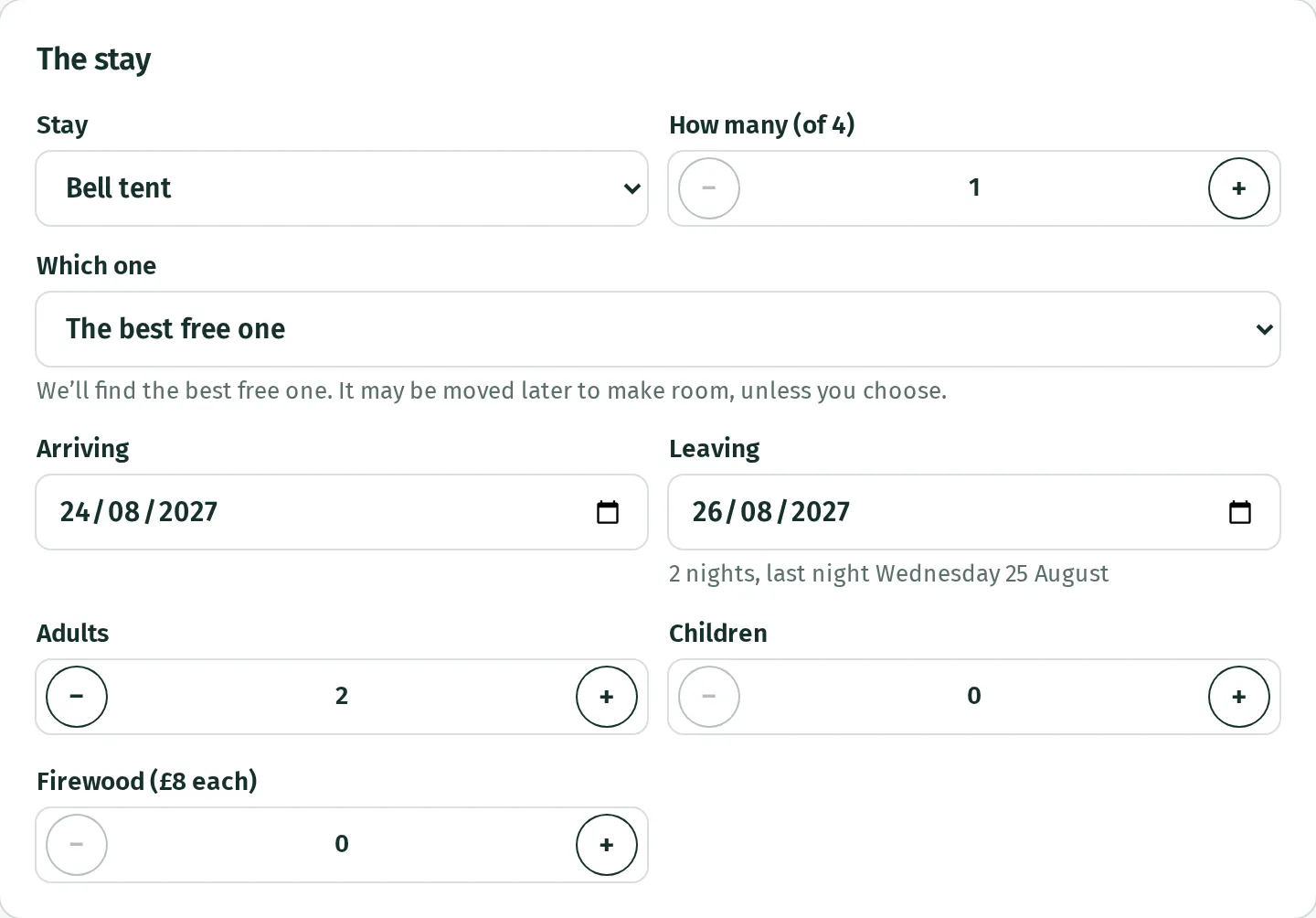
The booking opens with its stays and money recorded. It is confirmed straight away. Adding it yourself does not take money from a card.
Leaving The best free one selected lets Kipdown choose a named place and move it later to make room. Choosing a particular place keeps the stay there.
One booking can contain up to six stays of different kinds, on the same or different dates. A different agreed price for a booking with several stays must be set by changing each stay afterwards.
Close dates
Section titled “Close dates”- Open Bookings → Close dates. You can also tap an empty night in Calendar and choose Close this night.
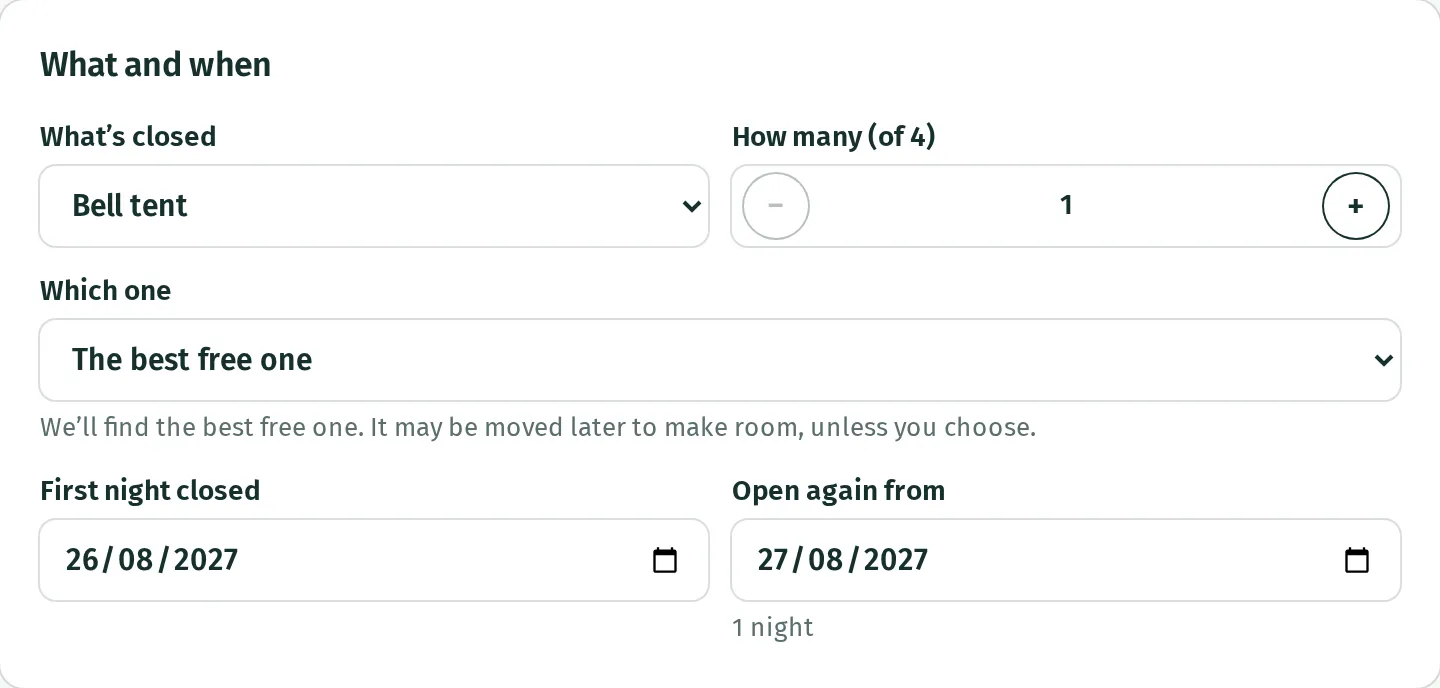
- Under What and when, choose What’s closed, How many and any named places.
- Enter First night closed and Open again from. The reopening date can be booked again.
- Use Close something else too if more than one kind of stay is affected.
- Under What it’s for, add a few words for the calendar, such as “Canvas repairs”, then press Close these dates or Close them.
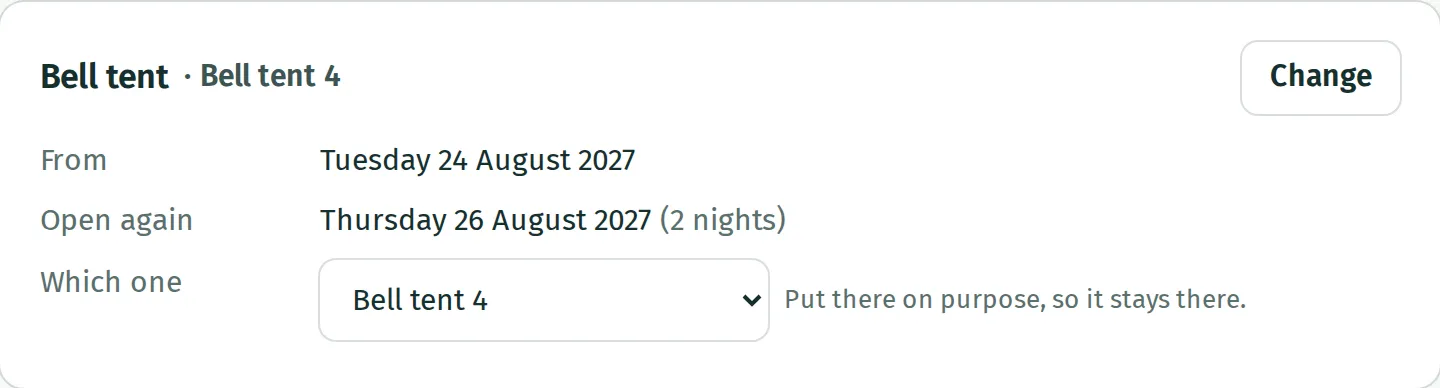
Closed dates appear on the calendar. Open their bar to change them, or use Open these dates again → Open the dates to remove the closure. For a closure containing several stays, Open this again reopens just one.
If Kipdown says there is no room
Section titled “If Kipdown says there is no room”Check the dates, quantity and chosen places. Owners can book outside normal stay rules, but a full stay needs Book it anyway (overbook) ticked before saving. Only use this when you intend to exceed the available space.