

Move from another booking system
Set up Kipdown while your current system keeps running. Move the bookings and calendar connections before you send guests to the new booking page, then close the old system once you’ve checked everything.
Before you start
Section titled “Before you start”You need owner access to Kipdown, access to your old system and any other booking sites, and a way to change the booking button or page on your website. Keep a copy of current and future bookings still going ahead, including what each guest booked, their dates, agreed price and money already paid.
Choose a quiet time for the final switch. Keep Taking bookings online off in Settings → Where guests book until the existing bookings and calendars are ready.
Switch in this order
Section titled “Switch in this order”- Set up stays and prices. Follow Set up Kipdown and check the stays, named places, open dates, prices, payment arrangements and terms. Try View booking page under Stays and prices; its preview lets you check the guest’s steps without making a booking.
- Bring existing bookings across. Follow Bring your bookings across below, or Add a booking or close dates for a small number entered by hand. Keep a record of which bookings you’ve moved and when you took the export.
- Connect calendars while both systems are available. Under Settings → Other booking sites, connect each other booking site’s calendar if it supports calendar links. Follow Connect Airbnb, Hipcamp, Pitchup and Booking.com to add its link and give it Kipdown’s link. Check the imported dates on the Calendar before opening Kipdown to guests. Check availability on each other booking site too.
- Pause new bookings in the old system and reconcile the lists. Before changing your website, stop the old system taking new direct bookings. Compare its current bookings with Kipdown, bring across only the ones still missing, and apply any date changes or cancellations made since your first export. Compare the amounts paid too. Bookings from other booking sites can still arrive, so check their calendars again.
- Change your website’s booking button or page. Switch on Taking bookings online under Settings → Where guests book and replace the old booking link or embedded page using Put booking on your website. Open your website as a guest and check it shows Kipdown’s page, the right stays and the expected availability. Update any booking links on your social profiles and in your emails.
- Switch off the old system’s remaining connections. Check that other booking sites now read Kipdown’s calendar rather than relying on the old one. Remove the old calendar connections on those services and check no old booking buttons remain. Keep access to the old records until you’ve checked the move and dealt with any outstanding payments or refunds, then close the old account when ready.

Bring your bookings across
Section titled “Bring your bookings across”Your stays must already exist under Stays and prices, and you need owner access. Export your old system’s bookings as CSV, including the agreed price and amount already paid. The import file explains the columns, date formats and rules.
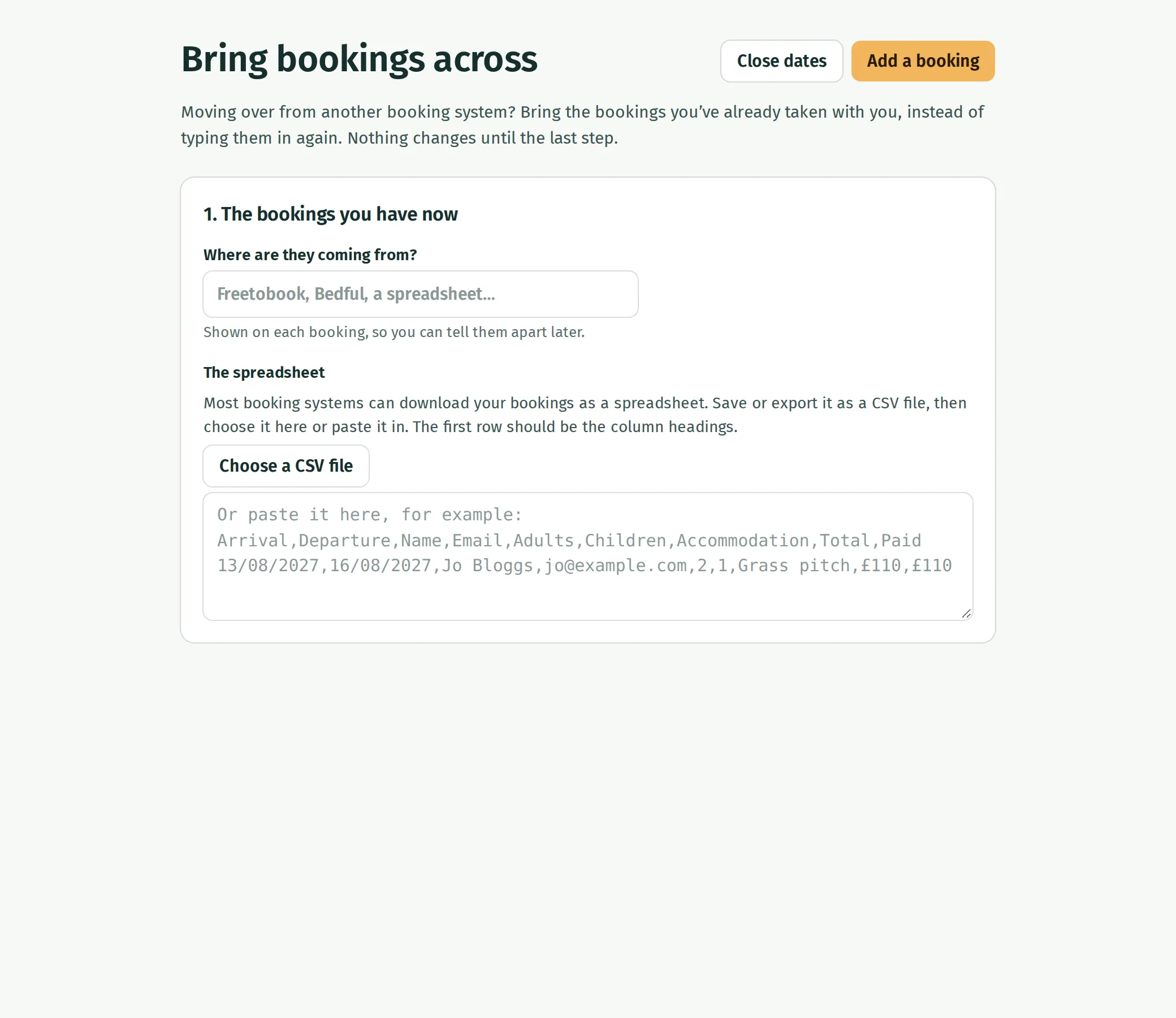
- Open Bookings, then press Bring your bookings across.
- Fill in Where are they coming from?, then choose the CSV file or paste it under The spreadsheet.
- Check 2. Which column is which, including Dates like 03/08/2027 mean for numeric dates.
- Check 3. What was booked. Match each kind of stay to its stay or named place in Kipdown, or let Kipdown choose a free named place.
- Check the preview under 4. Check and bring them across, including the dates, price, amount paid and any problems.
- Check the two options for overbooking and emailing confirmations. Both start off. Leave overbooking off unless you intend to exceed the space available, and leave confirmations off if your old system already confirmed the bookings.
- Press Bring … bookings across, then check the results, Bookings and Calendar before opening online booking.
Avoid bringing the same booking across twice
Section titled “Avoid bringing the same booking across twice”If an import reports a problem or loses its connection, check Bookings and the Calendar before trying those rows again. Fix missing bookings individually rather than importing the whole file again.
Payments and limits to check
Section titled “Payments and limits to check”A record of money paid can come across with a spreadsheet booking. The guest’s saved card does not come across, so Kipdown cannot automatically charge that old card for a balance. Agree how remaining balances will be paid; see Deposits and balances.
Calendar links keep dates in step, rather than transferring a full booking record or payments. Kipdown checks other sites’ calendars every 15 minutes, and each other site decides how often it reads Kipdown’s link. Do not rely on calendar links to make two direct booking systems safe to sell the same last place at once. See Other booking sites for the limits.