

Cancellations and refunds
Set the refund rules guests book under, or give a refund from an individual booking. To change dates, remove a stay or cancel the booking itself, follow change, move or cancel a booking.
Set your cancellation refunds
Section titled “Set your cancellation refunds”- In the menu, open Settings → Payments.
- Under If guests cancel, press Edit.
- Set how many days before arrival a guest must cancel and the percentage they get back. Use Add another step for a different percentage nearer arrival. You can have up to six steps, each with a different number of days.
- Set Take off a fee of to the amount deducted from any refund. Use £0 for no fee.
- If you take deposits and want to keep them on cancellation, tick Keep the deposit whenever they cancel.
- Press Done and check the timeline. Changes save as you make them; wait for the saving status to finish.
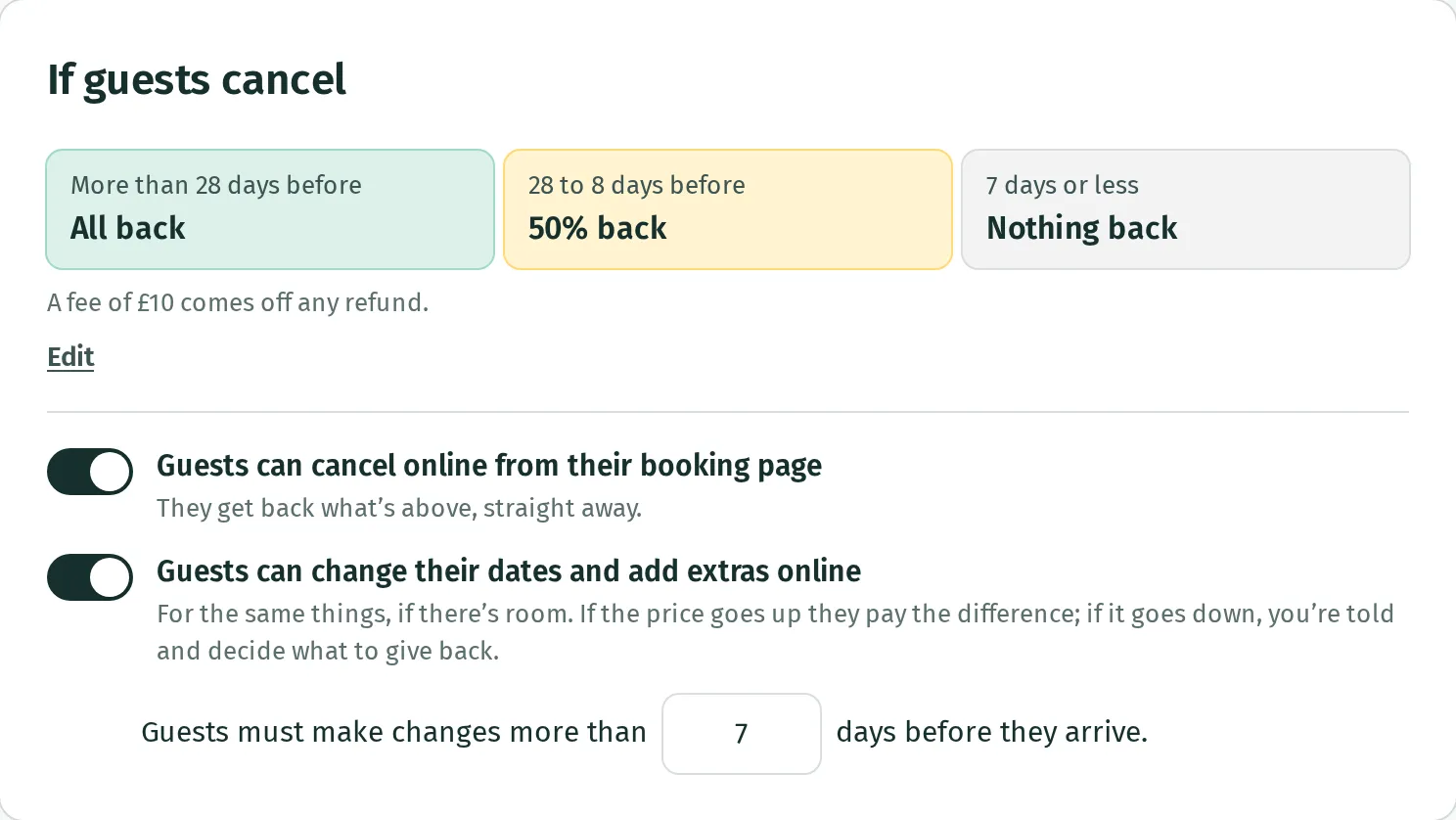
These rules apply to new bookings. Existing bookings keep the cancellation rules they booked under.
How the amount is worked out
Section titled “How the amount is worked out”Kipdown uses the first step the guest qualifies for, starting with the furthest from arrival. More than 28 days means 29 days or more; exactly 28 days falls into the next step. If no step applies, the refund is £0.
The percentage is of the money already paid, less any refund already made. Kipdown subtracts your fee from that percentage amount. If you keep the deposit, it also limits the refund so that the original deposit stays with you. The result cannot be less than £0.
For example, with £90 paid, a 50% step and a £10 fee give a £35 refund. Keeping the whole £90 deposit would reduce that to £0.
Keeping the deposit only applies when the first payment is less than the booking total. If the guest pays in full when booking, including a 100% deposit or a booking made after its balance due date, the percentage and fee rules apply without retaining a separate deposit.
See what guests can do from their link to allow online cancellation. When a guest cancels online, Kipdown returns the refund to the card or gift voucher that paid, where possible. A payment received outside Kipdown needs you to return the money yourself.
Give a refund from a booking
Section titled “Give a refund from a booking”- Open Bookings, then the guest’s booking.
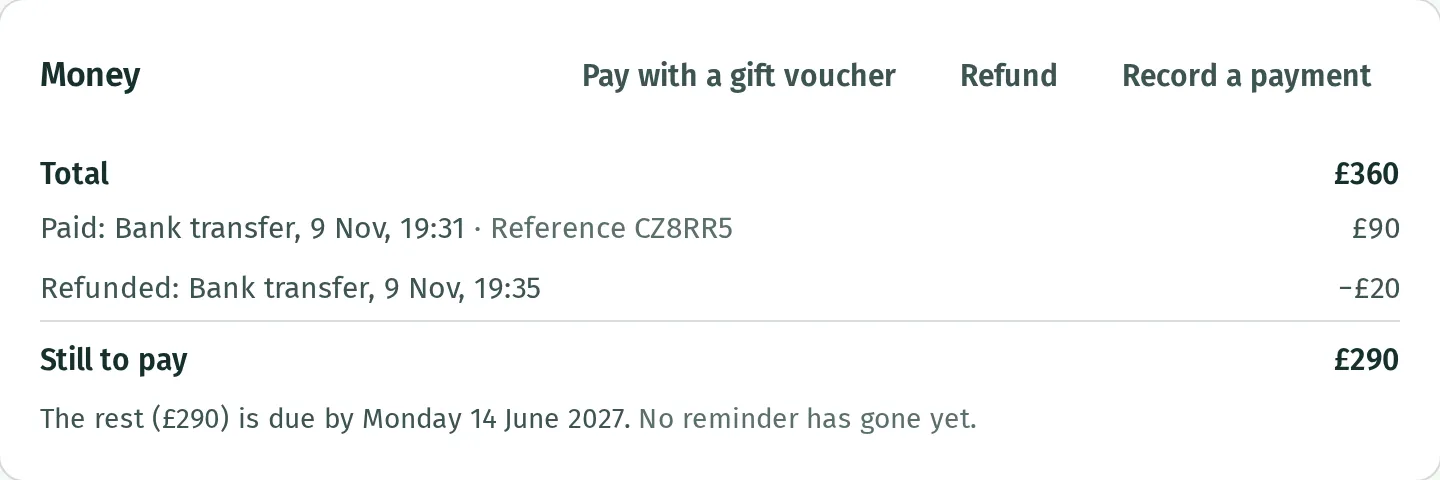
- Under Money, press Refund.
- Enter the Refund amount and choose Paid back. To their card appears when a card payment can still be refunded; Back onto their gift voucher appears when voucher money can be returned. For money you return yourself, choose Bank transfer, Cash, Cheque or Another way.
- Add a Note (optional) for your records, then press the Refund button showing the amount.
- Check the refund listed under Money and any problem message.
If a card refund fails
Section titled “If a card refund fails”You cannot refund more than the guest has paid or send more back to a card than it took. Card refunds go back against the most recent card payments first.
A refund marked on its way is still pending. If it fails, the row says failed, so the money is still with you. Return the money another way and record that refund. The screen does not promise a date when a card refund will reach the guest’s bank.