

Add your stays
Add each kind of stay guests can book, such as a camping pitch, bell tent or cottage. Places with the same description, prices and facilities can share one stay, even when each has its own name.
Before you start
Section titled “Before you start”You need to be an owner of the business to change Stays and prices. Have your prices, guest limits and photos ready. You can add stays before switching on online bookings.
Add a stay
Section titled “Add a stay”- In the menu, open Stays and prices → Stays.
- Press Add something to book.
- Give it a Name, using the name for one, such as “Bell tent”, and write a Description for the booking page.
- Fill in Price. You can charge per person or per pitch, tent or room, for each night. Set your prices explains the choices.
- Under How many do you have?, choose how Kipdown should count them, as explained below.
- Under Who can stay, set Most guests in each to the number one pitch, tent or room can take. Adults and children both count towards this limit; a booking needs at least one adult.
- Add the photos, key facts and arrival details described below, then press Add.
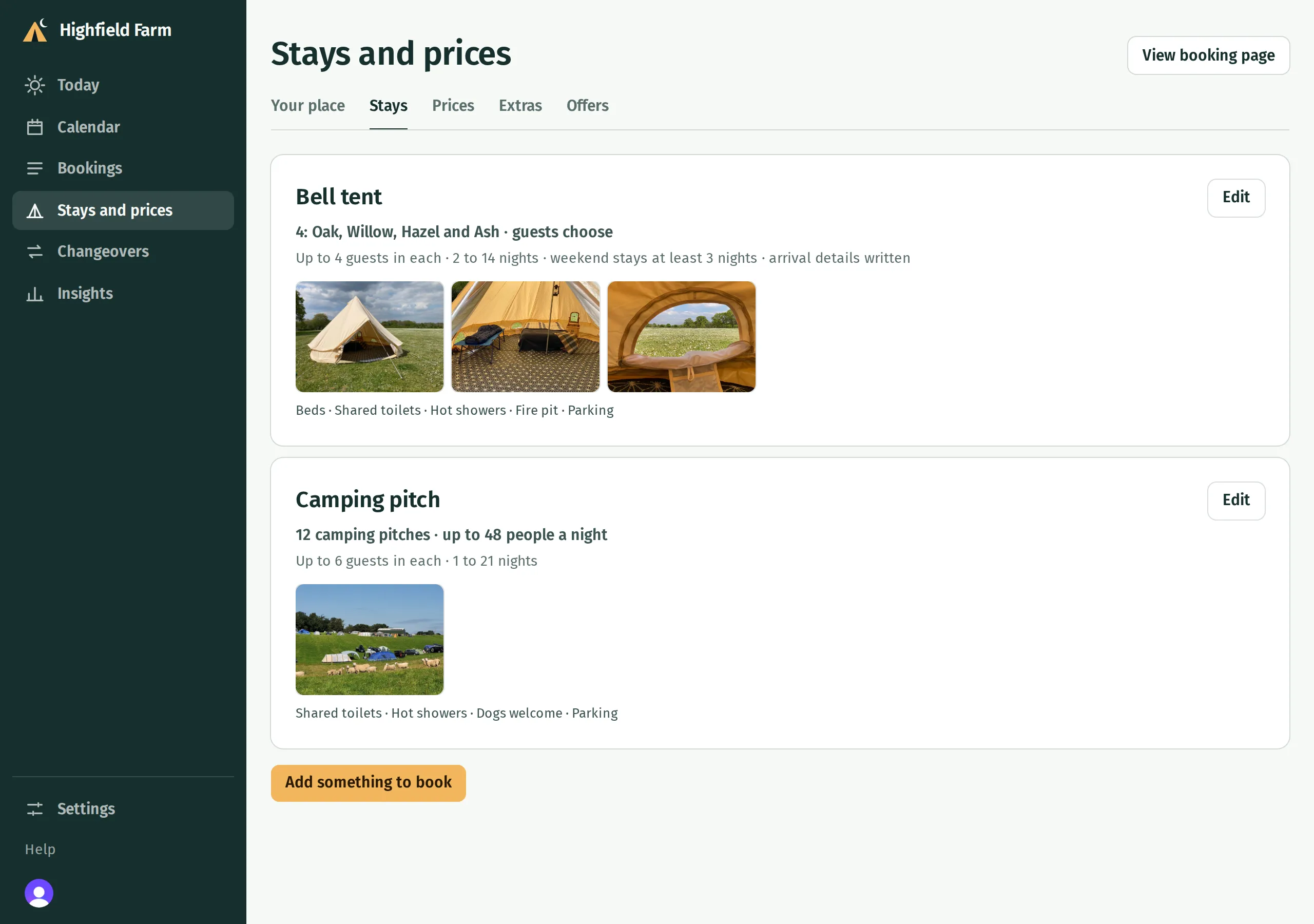
To change it later, press Edit beside the stay. Existing stays save as you change their fields; press Done to close. Their prices are edited separately under Prices.
Choose how many you have
Section titled “Choose how many you have”| Choice | When to use it |
|---|---|
| A set number | You have a fixed number of interchangeable places, such as twelve pitches. Enter How many you have. Guests book a quantity without choosing a particular pitch. |
| Each one has its own name | You need to keep track of individual tents, rooms or cottages. Name each one and use Add another to add more. |
| No set number | You do not want a limit on the number of places booked. Open dates and any limit on people still apply. |
For named places, switch on Guests choose which one on your website if guests should pick a name when booking. With it off, Kipdown assigns a free place and you can move the booking on the calendar.
Limit the number of people a night sets a total across this kind of stay, such as no more than 48 people across all camping pitches. It is separate from the limit in each pitch and does not set a shared limit across different kinds of stay.
Add photos and key facts
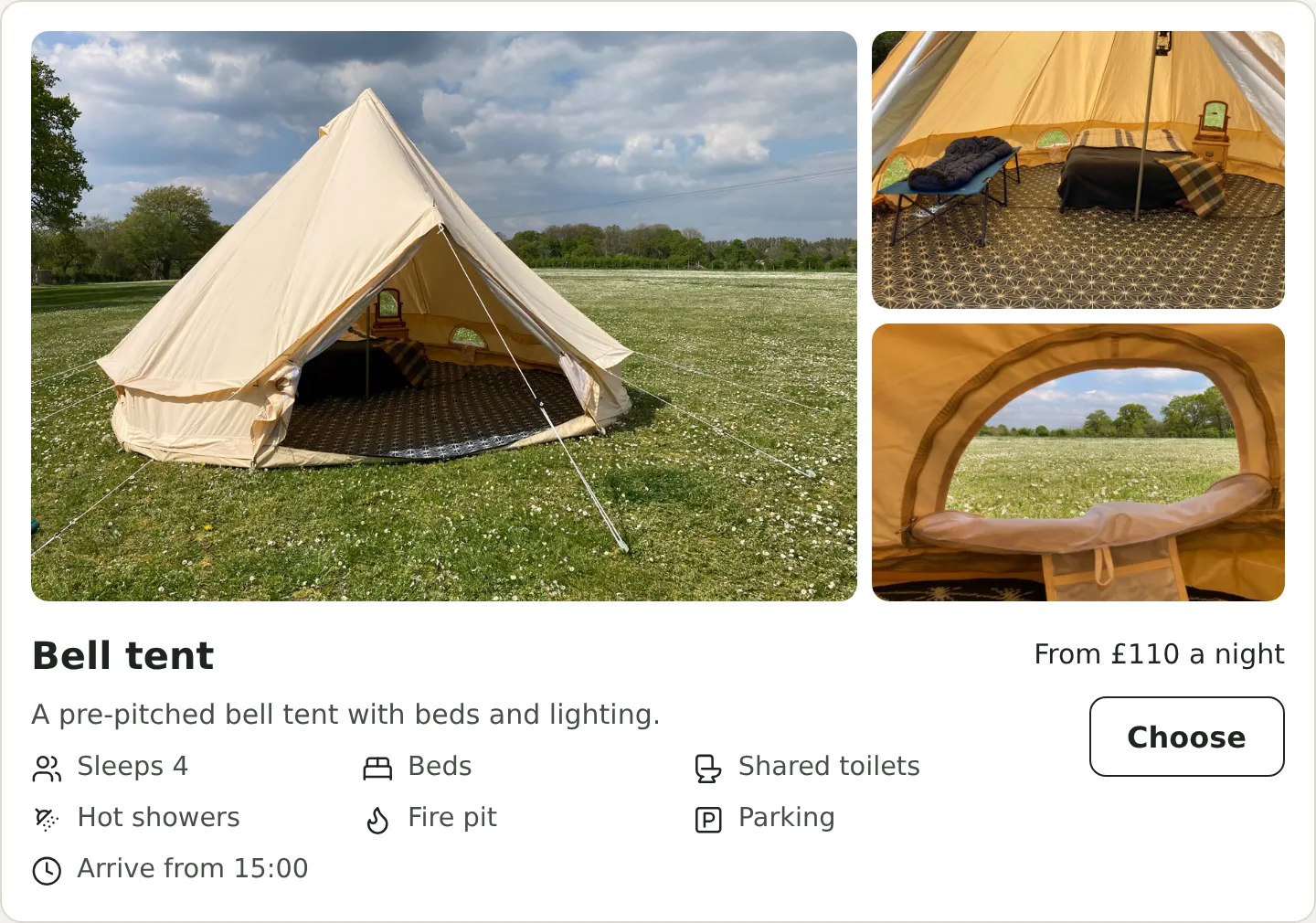
Section titled “Add photos and key facts”Under Photos, use Add a photo or Upload several. You can keep up to 20 photos per stay, add captions, move them with the arrows or Remove one. The first is the Main photo, used first on the booking page and at the top of booking emails. Wait for uploads to finish before closing.
Under Key facts, tick only the facilities each place has. These appear as icons on the booking page. If places need different facts, photos or prices, add them as separate stays.
For photos of your whole place, open Stays and prices → Your place → Photos of your place. These appear above the stays and save as you change them.
Add arrival details
Section titled “Add arrival details”Write directions, parking instructions or key collection details under When guests arrive → Arrival details. These are released shortly before a confirmed stay, rather than with the initial confirmation. The emails guests get explains the arrival reminder.
Set opening dates, times and stay lengths before taking bookings.
If you need to take a stay away
Section titled “If you need to take a stay away”Open Edit → Remove. Existing bookings keep their details. Kipdown refuses removal while the stay has bookings still to come; move or cancel those bookings first.
Reducing capacity can leave existing bookings without room. Kipdown flags these as double bookings; follow Sort out a double booking to resolve them. It does not cancel them for you.