

Set up Kipdown
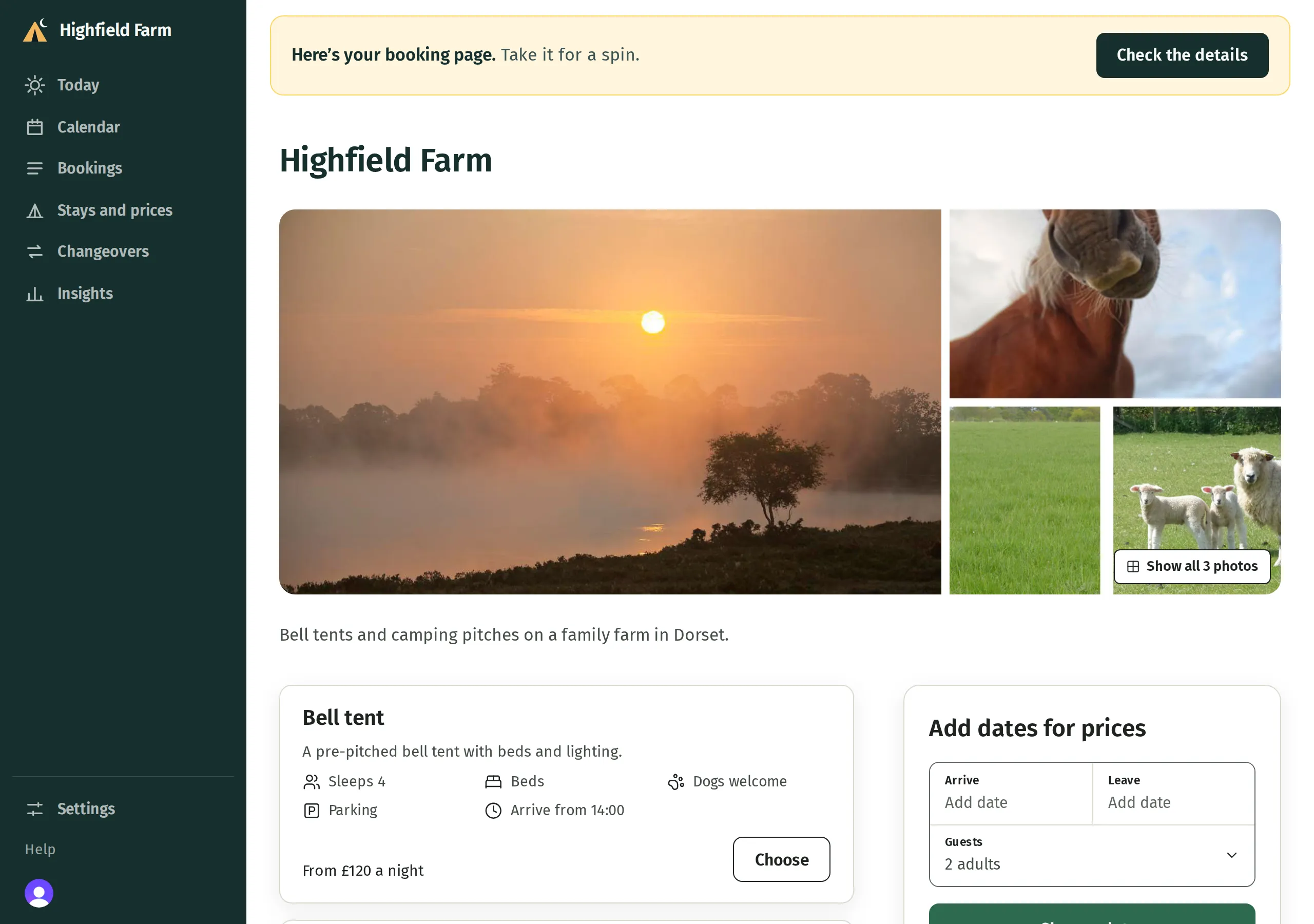
Sign up with your business’s website or listing and Kipdown uses its public pages to fill in your booking page. You check the details before you let guests book.
Before you start
Section titled “Before you start”Have your business name and, if you have one, a link to your website or your own listing on Hipcamp, Pitchup or Airbnb. You also need your current prices and opening dates to check against what Kipdown finds.
If you’re already taking bookings elsewhere, follow Move from another booking system before switching on online booking.
Sign up and see your booking page
Section titled “Sign up and see your booking page”- Open Kipdown’s sign-up page and create your account.
- On Tell us about your business, enter Business name and Website or listing, then press Continue. If you have neither a website nor a listing, leave the link empty; Kipdown takes you straight to Stays and prices to add everything yourself.
- With a link, wait while Kipdown reads your public pages. When it’s ready, it opens your booking page in preview. Try choosing dates and stays to check the prices guests will see. The preview does not make a booking or take payment, and works before online booking is switched on.
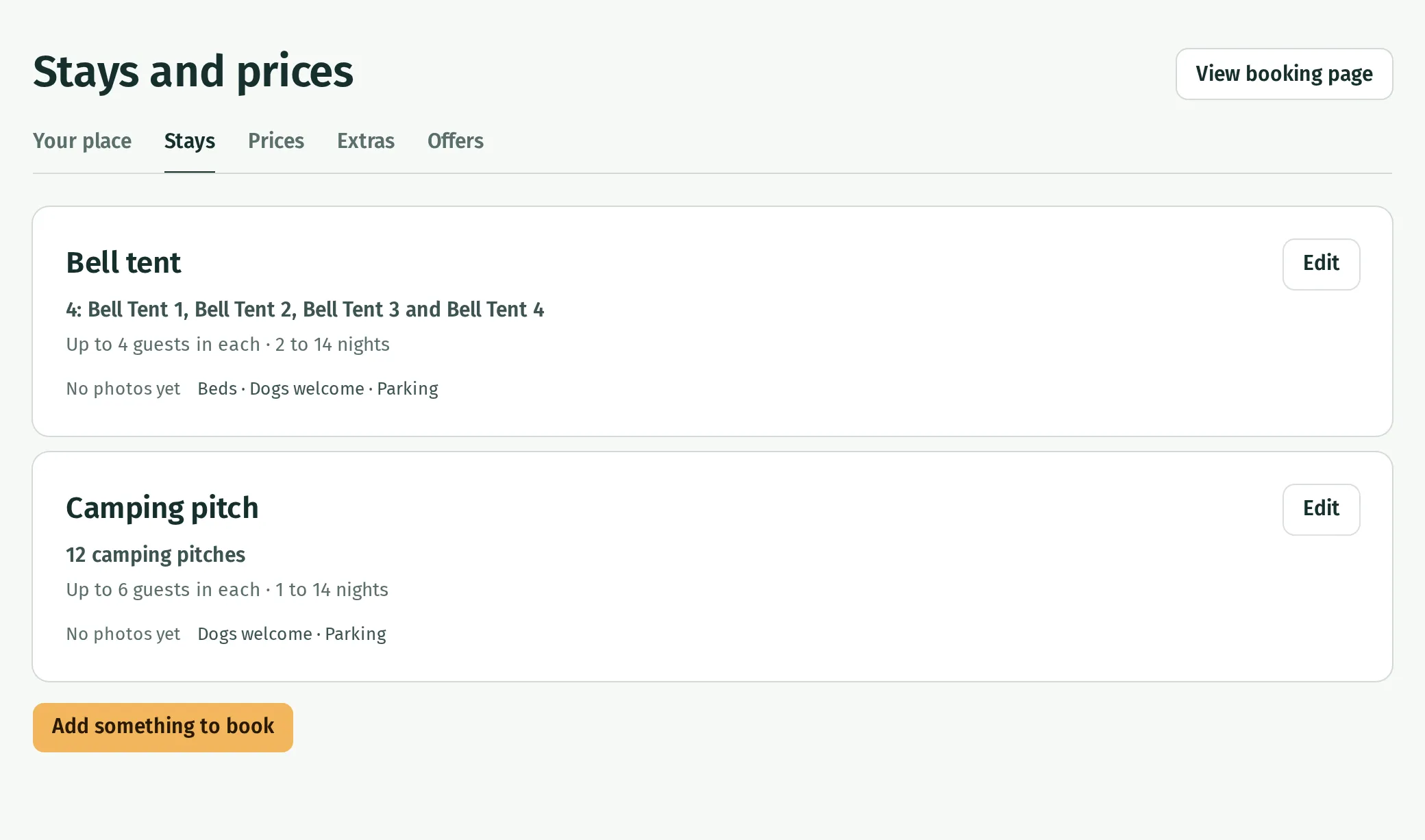
- Press Check the details to open Stays and prices. You can return to the preview with View booking page at the top of that screen.
What Kipdown fills in
Section titled “What Kipdown fills in”Kipdown looks for the kinds of stay, how many there are or their individual names, descriptions, photos, published prices, opening dates and priced extras. It also looks for your business’s contact details, logo and colour, arrival and leaving times, payment arrangements and booking terms. It identifies what your website is built with so it can show the right instructions for adding booking to it.
What it finds depends on what your public pages say. It does not bring across existing bookings, connect your Stripe account or connect other sites’ calendars.
Check the details and get ready
Section titled “Check the details and get ready”- Open Stays and prices → Stays. Check each stay’s name, number or named places, guest limits, photos and rules. Add anything missing using Add your stays.
- Open Stays and prices → Your place to check the open dates and arrival and leaving times. Then check each stay’s own dates and stay lengths using Opening dates and minimum stays.
- Open Stays and prices → Prices. Check the usual and seasonal prices, including whether they are per person or per pitch, tent or room. See Set your prices. Check Extras too, using Extras and compulsory fees.
- Open Settings → Your business and check your contact details, logo and colour using Your business details. Under Settings → Booking emails, check Emails to you for new booking notifications and The emails guests get for guest messages.
- Open Settings → Payments and choose when guests pay. To collect money by card, connect card payments. Check deposits and balances, bank transfer if offered, and cancellations and refunds.
- Check Settings → Booking terms and Questions for guests using Booking terms and Questions for guests. Bring existing bookings across and connect other booking sites if needed.
- Use View booking page again to check dates, prices, extras and terms. Then open Settings → Where guests book, switch on Taking bookings online when ready, and put booking on your website or share its link.
Your first guest booking appears in Bookings. Today and the arrivals list explains what to do as guests arrive.
If Kipdown couldn’t make your booking page
Section titled “If Kipdown couldn’t make your booking page”Press Add your stays and prices on the failure message and add the details yourself. If only some details are missing or wrong, correct them in Stays and prices and Settings; you don’t need to sign up again.
You can’t sign up a second business on the same account yourself yet. Email hello@kipdown.com if you need another.