

Your business details
Set the details guests see on your booking page, booking emails and receipts in Settings → Your business. This is also where you choose the address guests’ email replies go to.
Before you start
Section titled “Before you start”You must be an owner to change these details. Have your logo ready as an image if you want to use one. A logo is optional: Kipdown shows your business’s name when there is none.
Change your business details
Section titled “Change your business details”- Open Settings → Your business.
- Edit Name, A line about your business, Address or Phone as needed.
- Set Email to the address where you want to receive customers’ replies.
- Leave each text box after editing and wait for Saved beside the Settings heading. There is no Save button.
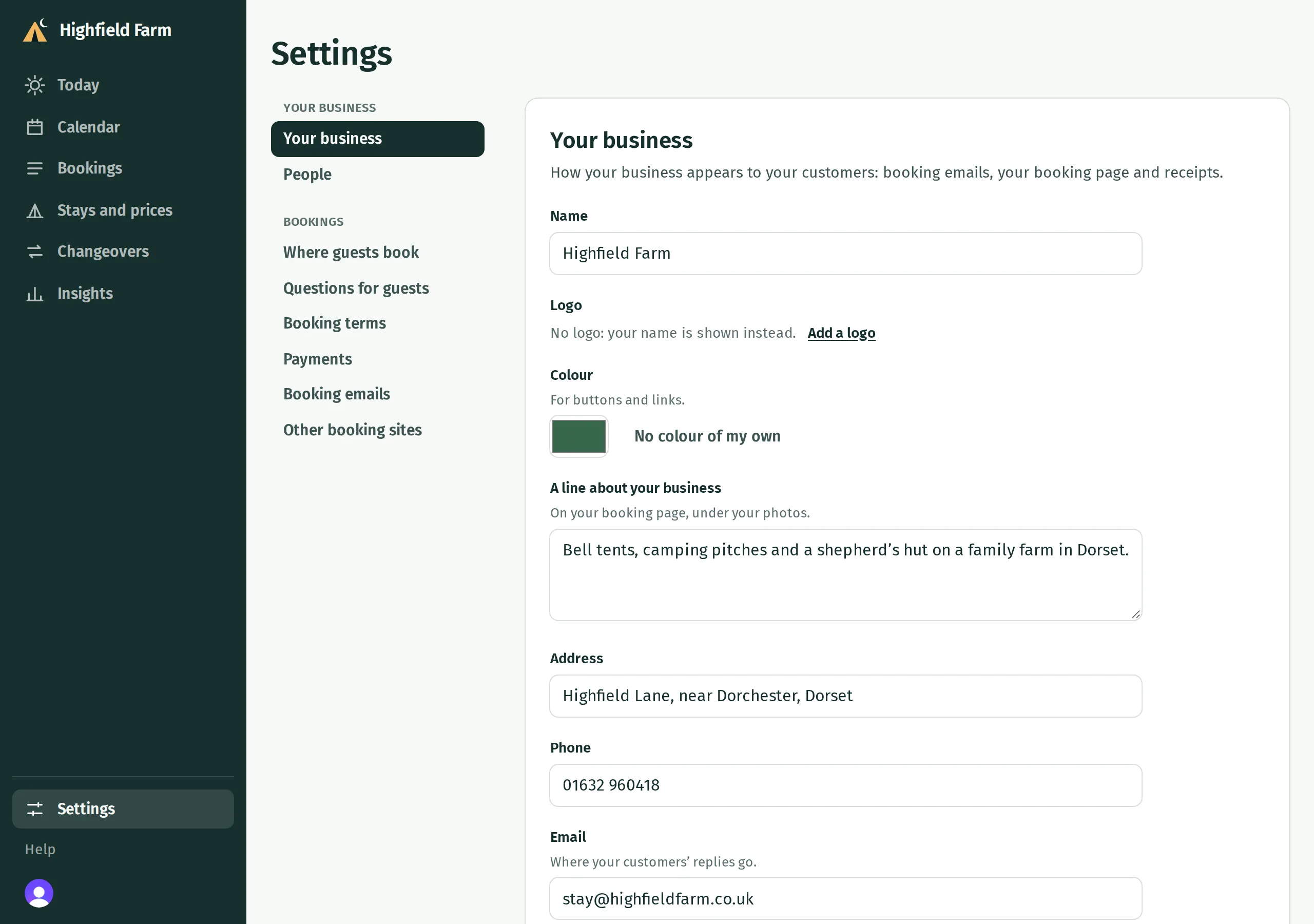
Name can be up to 80 characters. A line about your business and Address can each be up to 300 characters, and Phone up to 40. The line about your business appears under the photos on your booking page.
Choose a logo and colour
Section titled “Choose a logo and colour”- Under Logo, press Add a logo and choose an image from your device. If you already have one, use Change logo instead.
- Wait for the upload and save to finish. Use Remove beside the logo if you want your name shown instead.
- Under Colour, open the colour picker and choose a colour for buttons and links. This saves as you choose it. Press No colour of my own to return to Kipdown’s default.
Open your booking page after changing these details to check what guests see. Changes affect the page when it is loaded again and emails written afterwards. Emails already prepared or delivered keep the details they had.
Where replies go
Section titled “Where replies go”
Email sets the reply address on booking emails. It does not change the email you use to sign in, or the address Kipdown sends booking notifications to. If you leave it blank, booking emails use the notification address set under Settings → Booking emails instead.
Setting this address does not make it the address emails are sent from. Booking emails for your business are sent in your business’s name through Kipdown. See Emails to you for the notification address and daily arrivals email.
If a change has not saved
Section titled “If a change has not saved”Text stays unsaved while you are still typing in its box. Click or tap outside it, or press Enter in a single-line box. If Kipdown shows Not saved, correct the problem it gives and press Try again. Your business needs a name, and Email must be an address that can receive email, or blank.
What you can’t change here
Section titled “What you can’t change here”This screen has no field for your website address, booking-page address, country, time zone or UK bank holiday region. Changing Name does not change the short name in your booking link. For a change to these details, email hello@kipdown.com. Your bank holiday region determines which bank holidays use weekend prices; see Set your prices.