

The emails guests get
Kipdown emails guests about their booking, before their arrival and after their stay. Settings → Booking emails shows the emails on a timeline. You can change their words, switch optional emails off and add your own messages.
Check where emails come from
Section titled “Check where emails come from”Open Settings → Booking emails. At the top, Kipdown shows the sending address, your business’s name and where replies go. Booking emails can go from bookings@book.kipdown.com in your name, with replies sent to you. Use change in Your business to update your contact details.
If the screen says Booking emails aren’t being sent yet, follow its explanation before taking bookings. For example, add an address for guests’ replies in Settings → Your business. Emails kept unsent because sending was not set up are not automatically sent later.
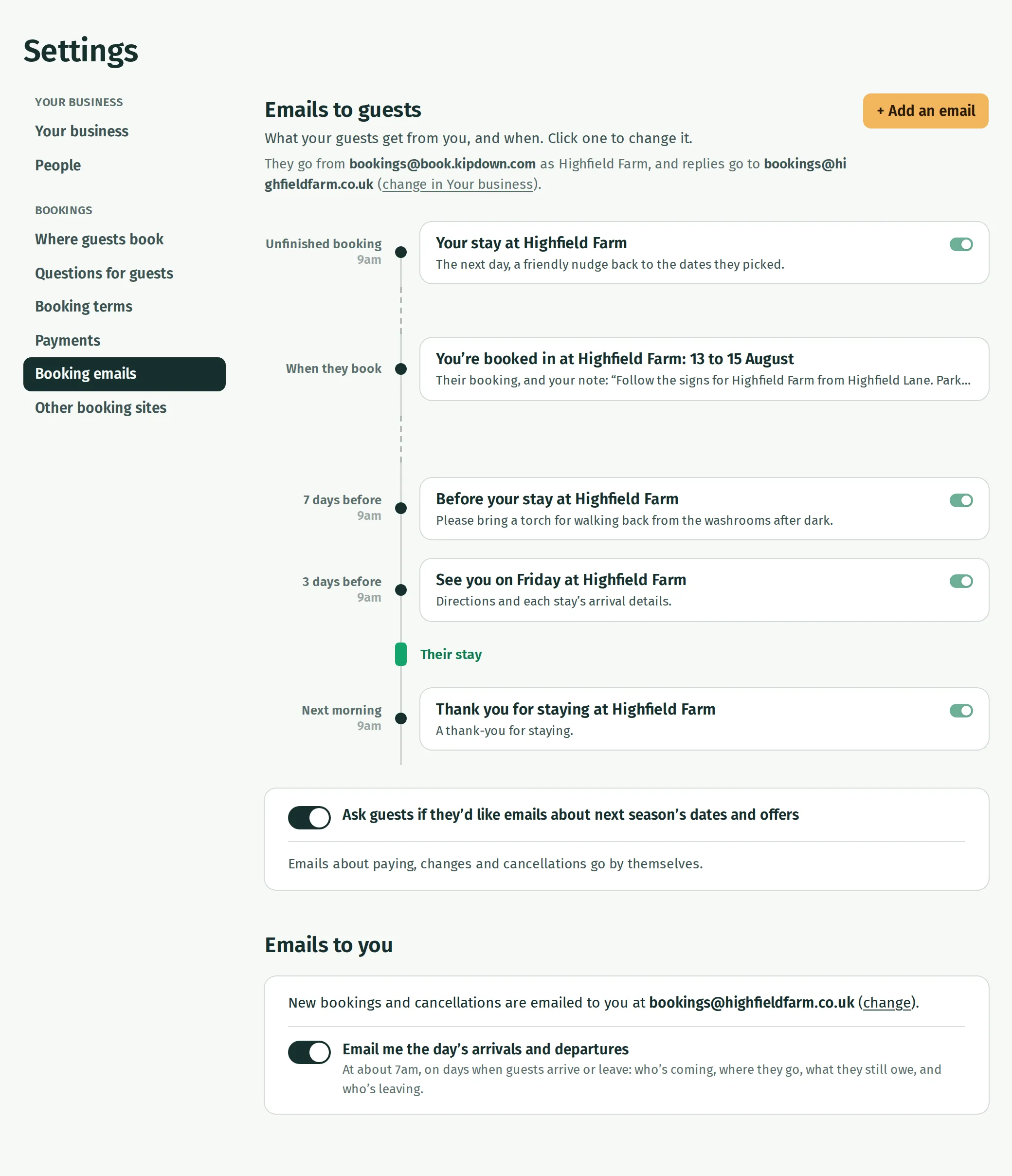
Which emails go when
Section titled “Which emails go when”The subject on each card uses your words. These are the standard emails:
| When it goes | |
|---|---|
| Unfinished booking | Once, the next day, if a guest reached payment but did not finish and their stay is still to come. It does not go to everyone who only browses dates. |
| Confirmation | When the booking is confirmed. It includes the stay, price, payment details and the link to View your booking. You cannot switch it off. |
| Arrival reminder | Before arrival, using the number of days you choose, from 1 to 60. It is skipped for bookings made in the last two days. |
| Thank-you | The morning after guests leave. You can add a review link to include a Leave us a review button. |
Timed emails run from 9am in your business’s time zone, rather than at an exact minute. A reminder can go closer to arrival if the booking was not eligible at the earlier check.
Emails about payment, bank transfers, changes and cancellations go automatically when those things happen. Their timing and words are not edited on the timeline. The payment articles explain balances and bank transfers.
Change an email
Section titled “Change an email”- Open Settings → Booking emails and click the email’s card.
- Edit Subject. Click the heading or message inside the email to type your own words over them.
- Use the buttons below the email, such as + first name and + arrival date, to insert details that Kipdown fills in for each guest.
- Change the timing or For choice where offered. The confirmation covers every kind of stay; other emails can be limited to one kind.
- Press Done. Existing emails save as you edit; check that any saving problem is resolved before leaving.
The note under Good to know is shared by the confirmation and arrival reminder. Changing it in either changes both. Each stay’s own arrival information is set with that stay under Stays and prices.
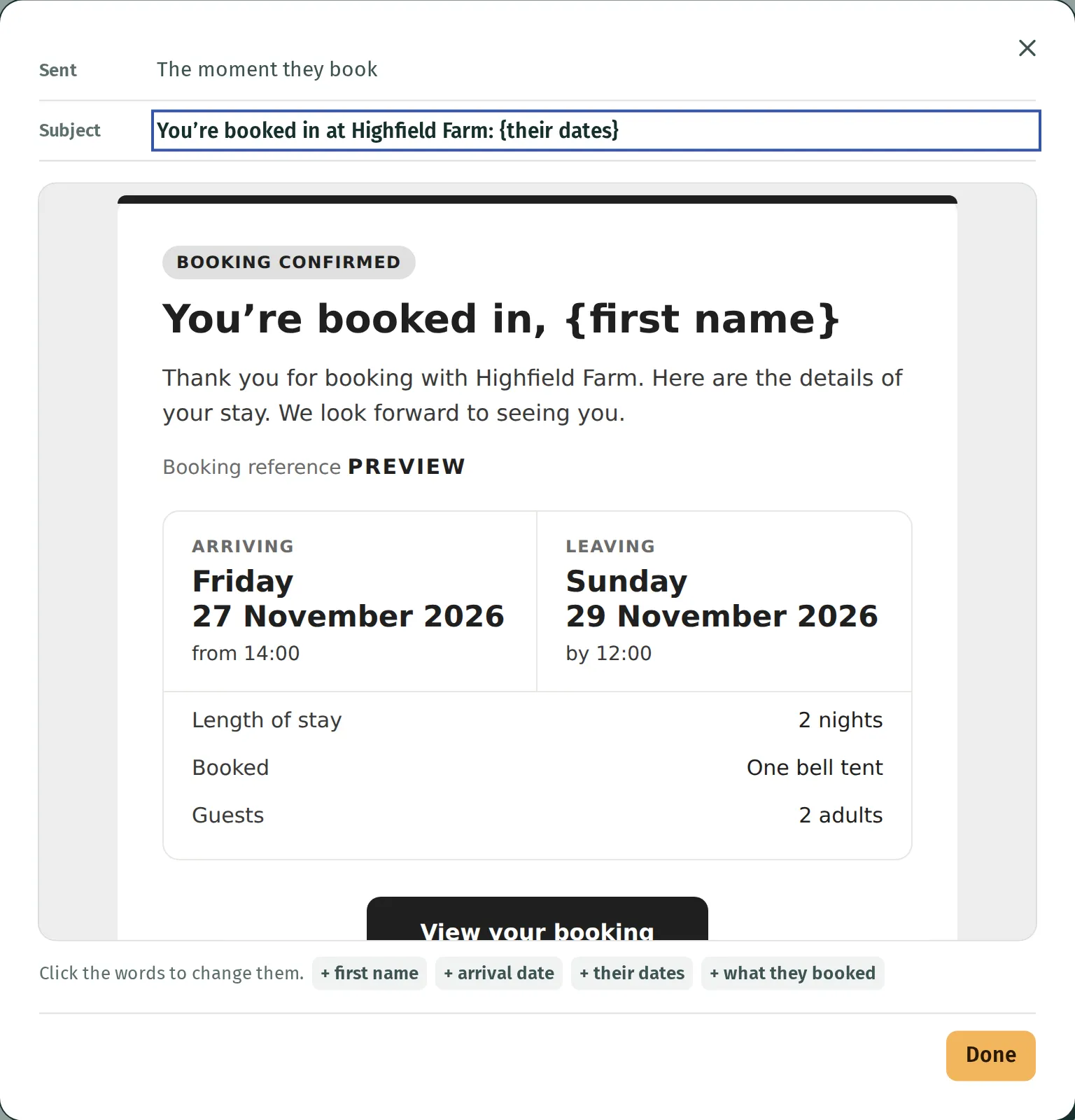
Use the switch on a card to stop or restart an optional email. Editing its words does not switch it back on.
Add your own email
Section titled “Add your own email”- Press + Add an email.
- Under Sent, choose days after booking, days before arrival, the day of arrival or days after leaving. Set the number of days where offered. With zero days after booking, Kipdown sends it the next time it checks for due emails between 9am and 8pm in your business’s time zone. It does not go immediately with the confirmation.
- Choose For if it is only for one kind of stay.
- Give it a subject and write the message inside the email.
- Press Add.
Your email appears on the timeline with its own switch. Open it again to change it or use Delete this email. Deleting stops it for guests who have not received it yet.
Emails to you
Section titled “Emails to you”Choose where Kipdown emails you about new bookings and cancellations under Settings → Booking emails → Emails to you.
- Press change beside the notification address.
- Set Tell me about new bookings at to the address you want, then press Done.
- Switch on Email me the day’s arrivals and departures if you want the daily list at the same address.
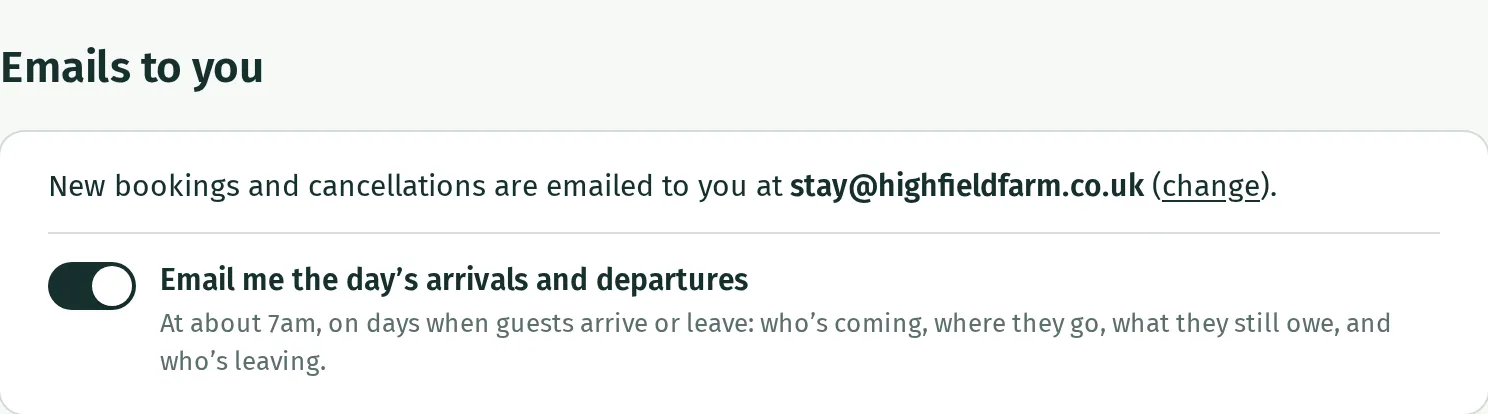
The daily email goes at about 7am in your business’s time zone, on days when guests arrive or leave. It lists who is coming, where they go, what they still owe and who is leaving.
Above Emails to you, Ask guests if they’d like emails about next season’s dates and offers adds an optional checkbox to the booking page. Kipdown keeps the words guests agreed to on their booking. If your business has a mailing list connected, it also adds guests who tick it to that list. Switching it on does not send an offers email; booking and payment emails go whether or not guests tick it.
Limits to be aware of
Section titled “Limits to be aware of”Bookings brought across from another system with an email address can receive the arrival reminder and balance reminder when those reminders are switched on and due. They do not receive the thank-you or your own added emails. Bookings from other sites’ calendars do not receive these timed guest emails. See moving from another system.
Changing a message does not resend one already sent. The editor shows a sample booking; its booking links do not open a real guest’s booking. There is no Send test email button here. To write to particular guests, use email your guests.