

VAT and receipts
Kipdown can show the VAT included in a booking and your VAT number on its receipt. You can print the receipt or save a PDF to send to the guest.
Set your VAT details
Section titled “Set your VAT details”Prices in Kipdown always include any VAT. Setting a VAT rate does not add an extra charge to your prices. Enter the total price the guest should pay when you set your prices.
- In the menu, open Settings → Payments.
- At the bottom, find VAT and press Change.
- Choose Prices include VAT if your prices include VAT, or Not VAT registered if that applies to your business.
- With Prices include VAT selected, enter the percentage rate and Your VAT number.
- Press Done and wait for the saving status at the top of Settings to finish.

Kipdown accepts one VAT rate for the whole booking, from 1% to 30%. It calculates the VAT within the total. For example, a £360 booking at 20% includes £60 VAT; the guest still pays £360.
Print or save a receipt
Section titled “Print or save a receipt”- Open Bookings, then the guest’s booking.
- Press Print a receipt. The receipt opens in a new tab.
- Check the guest, dates, price, payments and Still to pay or Paid in full.
- Press Print or save as PDF. In your browser’s print window, choose your printer or the option to save a PDF.
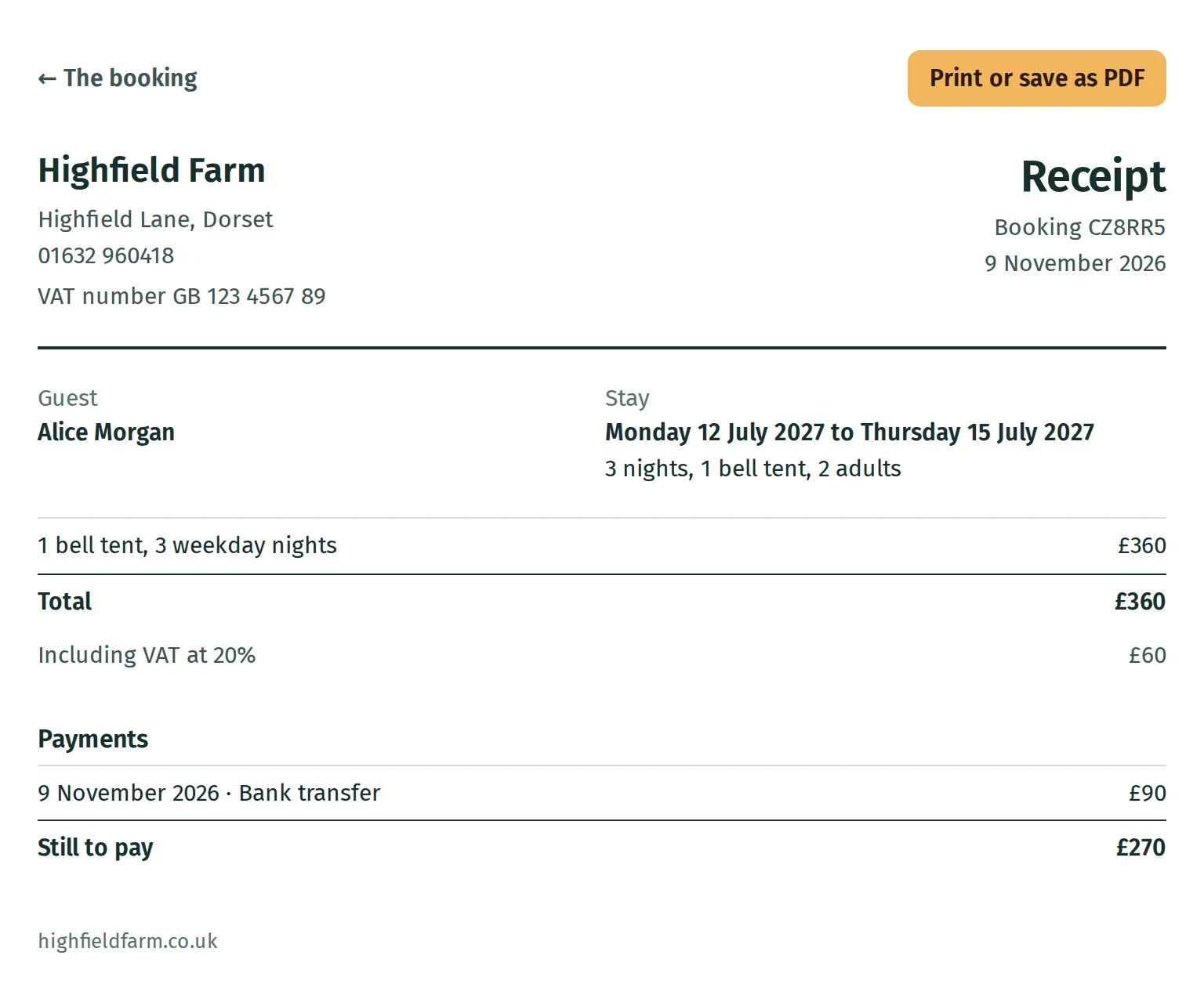
To send it, save the PDF and attach it to an email yourself. There is no button here to email a receipt directly. Guests can also print or save their receipt from their own booking page.
What the receipt includes
Section titled “What the receipt includes”The receipt shows the business name and address, phone number, VAT number where applicable, booking reference, guest name, stay dates and price lines. Its payments include recorded refunds as negative amounts. One booking containing several stays has one receipt.
The date at the top is the date you open the receipt, rather than the date a payment was made. Each payment has its own date. A receipt can be opened before payment; Still to pay makes clear that money remains owed.
If the details are wrong
Section titled “If the details are wrong”New bookings keep your business name, address, VAT rate and VAT number as they were when booked. Changing VAT later does not rewrite earlier bookings or their receipts. Your business’s current phone number is used on receipts.
If an old receipt has the wrong VAT details, contact hello@kipdown.com; there is no receipt editor here. Check the VAT details before taking new bookings.
What you cannot do yet
Section titled “What you cannot do yet”You cannot set different VAT rates for individual stays or extras. Kipdown does not add VAT on top of a price, or provide a separate invoice editor. For the payments shown on the receipt, see deposits and balances and refunds.