

Change, move or cancel a booking
Open a booking to change its stays, update the guest’s details or cancel it. A booking can have several stays, so check whether you are changing one stay or the whole booking.
Find the booking
Section titled “Find the booking”Open Bookings and use Find a booking by name, email, phone or reference. Enter at least two characters, then open the matching booking. You can also open it from Today or Calendar.
Change a stay
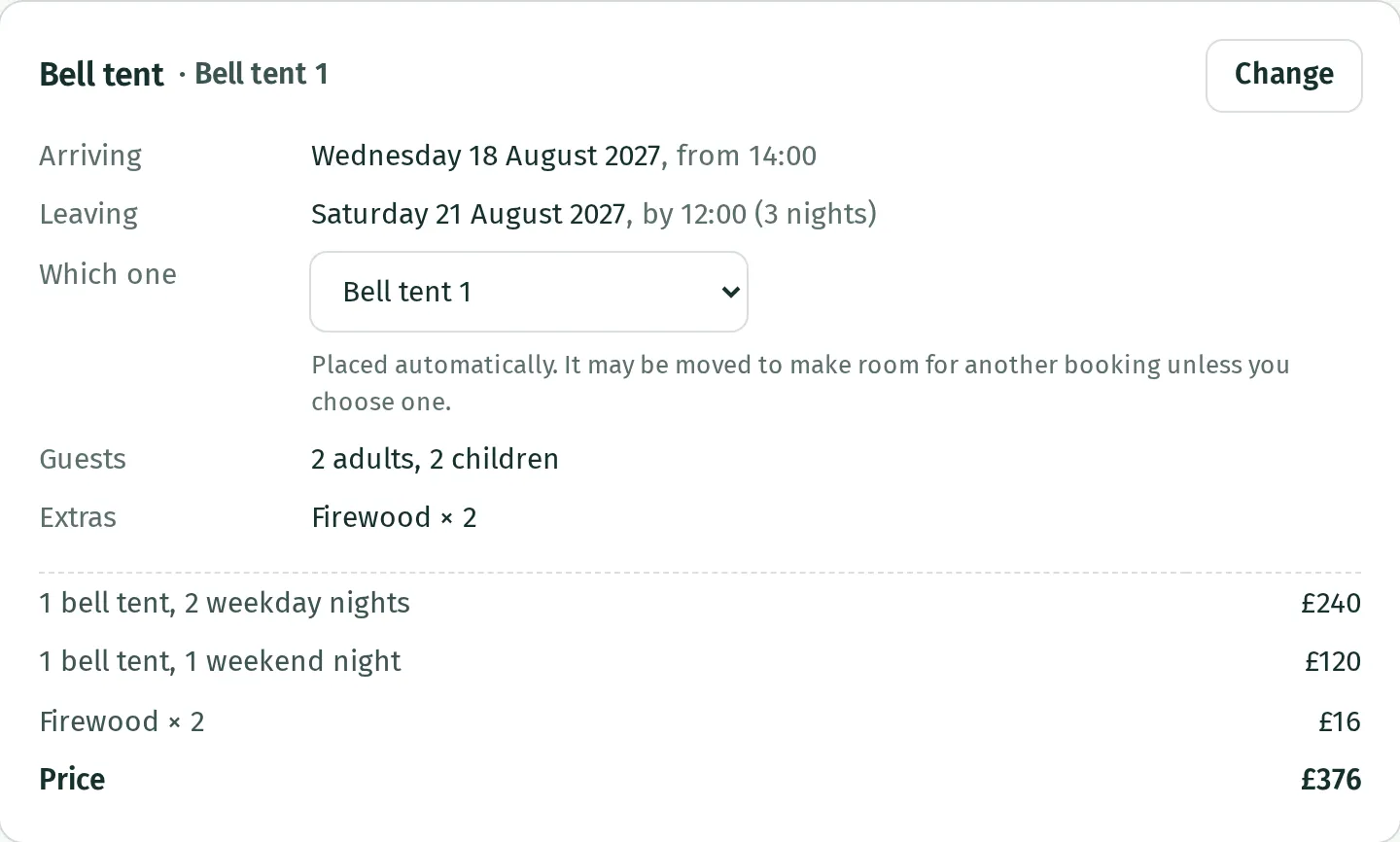
Section titled “Change a stay”- On the booking’s page, press Change on the stay you want to change.
- Update Stay, How many, the dates, Adults, Children or extras as needed. For named places, choose Which one or Which ones.
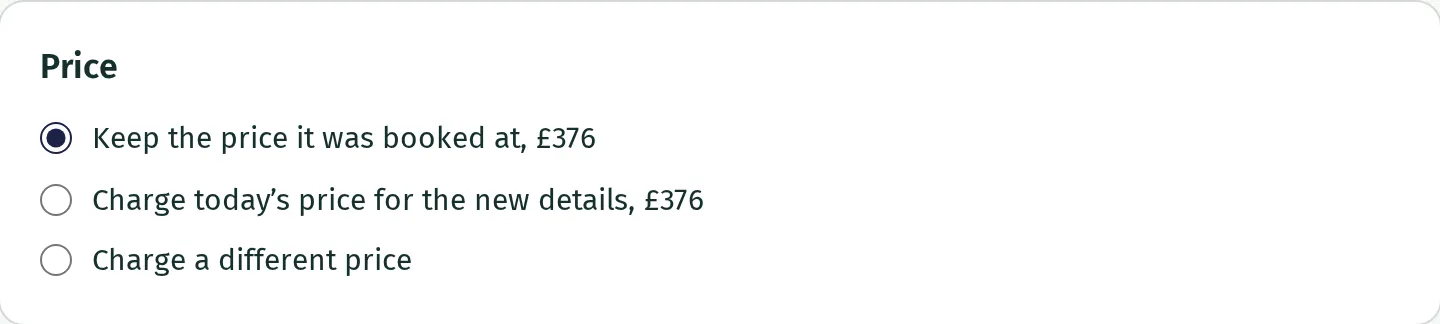
- Under Price, choose whether to keep the price it was booked at, charge today’s price for the new details, or Charge a different price.
- If the guest has an email address, check whether to email them the new details.
- Press Save changes.
Only that stay changes. A lower price does not automatically refund money already paid; follow Cancellations and refunds if money needs to go back.
For a quick move between named places, use Which one on the booking’s page. This keeps the price, does not email the guest and keeps the stay in your chosen place rather than moving it automatically later.
Update the guest’s details
Section titled “Update the guest’s details”Under Guest, press Edit to change Name, Email, Phone, Their message or answers to booking questions. Changes save as you type; press Done and check they have saved. Your notes also saves as you type and is visible to your team and cleaners, not the guest.
Cancel a stay or booking
Section titled “Cancel a stay or booking”- Open the booking and choose Cancel this booking below its details. If it contains several stays and only one is being cancelled, use Cancel this stay on that stay instead.
- Check the cancellation and any Refund and Paid back fields. Cancellations and refunds explains the rules and how money goes back.
- Check whether to email the guest to say it is cancelled.
- Press Cancel the booking or Cancel this stay in the confirmation window.
The cancelled stay’s dates are freed straight away. Cancelling one stay leaves the rest going ahead. The booking keeps its history.
Send the guest their booking link
Section titled “Send the guest their booking link”- Open Bookings, find the booking and open it.
- Under Guest, check the guest has an email address. Use Edit to add or correct it if needed.
- Press Copy their link to copy the private booking link, then send it to the guest.
On a confirmed booking, Send them a new link emails a replacement to the guest. Press Send in the confirmation window. The old link stops working, so use this if the guest has shared their link or thinks someone else has it.
Keep the link private: it opens the guest’s booking and payment details.
Sort out a double booking
Section titled “Sort out a double booking”- Open Bookings. The double booking warning lists the affected bookings; open each one to check its dates and stays.
- Look for This is a double booking. on the booking’s page, then check Calendar for another place or dates with room.
- Contact the guests to agree a move or cancellation.
- Use Change a stay to move the agreed stay to dates or accommodation with room, or Cancel a stay or booking if it cannot go ahead.
- Check Bookings and Calendar again to make sure the clash is resolved.
For a booking from another site’s calendar, make the change on that booking site and check its calendar in Kipdown. Cancelling its record here does not cancel it there. Arrange any refund using Cancellations and refunds.
What guests can do from their link
Section titled “What guests can do from their link”At the bottom of Settings → Payments → If guests cancel, Guests can change their dates and add extras online lets guests make those changes from their private booking link. Set how many days before arrival they must act; the screen says changes must be made more than that many days before arrival.
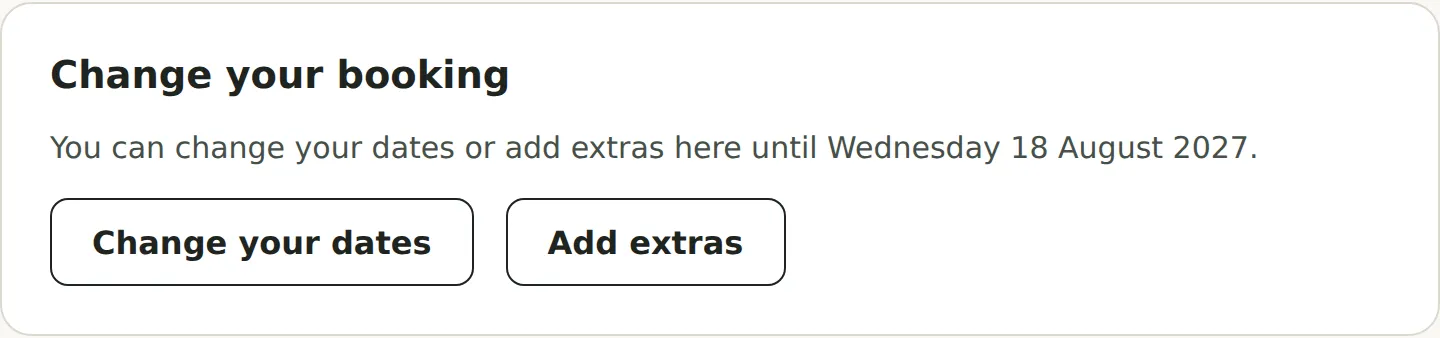
Guests use Change your dates or Add extras, then See the new price → Make this change. Kipdown checks the current prices, availability and booking rules, then emails you both the new details. Guests pay any increase from their booking page. For a price reduction, you decide what to return under Cancellations and refunds.
Guests cannot change the people, switch accommodation, change named places, remove extras or cancel just one stay themselves. Changing dates applies to everything booked. If the stays have different dates, they must contact you to change those dates.
Guests can cancel online from their booking page, on the same settings screen, lets guests cancel a confirmed booking before its arrival day. They need the private link and a code emailed to the address on the booking. The cancellation covers the whole booking. The page asks them to contact you when online changes or cancellation are unavailable.
Bookings from other sites
Section titled “Bookings from other sites”Change a booking brought in from another site’s calendar on that site. Cancelling it here only cancels the Kipdown record; make sure the booking is also cancelled on the original site.