

Invite people and choose their roles
Give each person their own access to your business, with a role that matches the work they do. You can change their role or remove their access later.
Before you start
Section titled “Before you start”You must be an Owner to invite people or change their access. Staff and Cleaner cannot open Settings → People.
Choose a role
Section titled “Choose a role”| Role in Kipdown | What they can see and do |
|---|---|
| Owner | Manage bookings and payments, change what you offer and its prices, change settings, invite and remove people, see reports, download spreadsheets, bring bookings across and forget guests’ details. |
| Staff | See guests’ contact details and booking history; add, change and cancel bookings, including changing a booking’s price; record payments and refunds; email guests; and read and print the changeover sheet. They cannot use Stays and prices, Settings, reports, spreadsheet downloads or forgetting a guest. |
| Cleaner | Read and print the changeover sheet, including the preparation information described in Changeovers and cleaners. They cannot open full bookings or change anything. |
Staff is the name shown in Kipdown. There is no separate read-only role for someone who needs full booking details without permission to change them.
Invite someone
Section titled “Invite someone”- Open Settings → People.
- Under Invite someone, enter their Email address. Use the address they will sign in with.
- Choose Staff, Owner or Cleaner in Role.
- Press Invite.
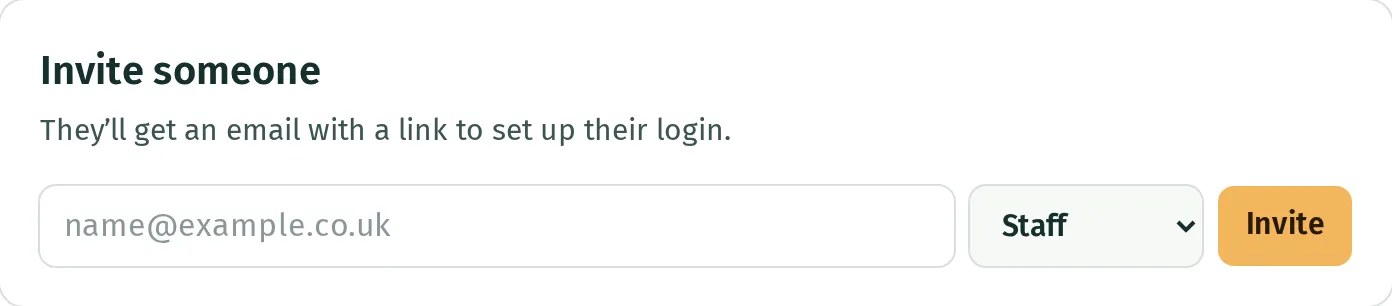
Someone new to Kipdown gets an invitation email with a link to set up their login. If they already have an account, access is added to it; they do not need another invitation email.
The person appears in the list. Invited, hasn’t signed in yet means Kipdown has not recorded a sign-in for that address.

Change a role or remove access
Section titled “Change a role or remove access”- In Settings → People, find the person.
- To change their role, choose a new one in the selector beside their name or email. It saves straight away.
- To remove their access, press Remove, then confirm with Remove in the question that opens.
Removing access does not remove the bookings they added. If you change your own role or remove yourself, Kipdown reloads with the access you still have.
If you cannot change the last owner
Section titled “If you cannot change the last owner”A business always keeps at least one owner. Make someone else an Owner before changing your own role or removing yourself. The last owner’s role selector and Remove button are disabled.
Give a cleaner emails without a login
Section titled “Give a cleaner emails without a login”Inviting someone as Cleaner gives them access to the screen. It does not subscribe them to emails. To send the sheet to someone who would rather not sign in, use Changeovers → Who gets this sheet, as described in Changeovers and cleaners.