

What guests see when they book
Guests choose their dates, see what is free and its price, then book. The same booking page works on your website and on the booking page you share by link.
Try your booking page first
Section titled “Try your booking page first”- Open Stays and prices.
- Press View booking page.
- Choose dates and a stay, then follow the form through to the last step.
This is a preview: it lets you check the page without making a booking or taking money. For guests to book for real, set up your stays and prices and switch on Taking bookings online in Settings → Where guests book. See put booking on your website for sharing or embedding it.
Choose dates, guests and somewhere to stay
Section titled “Choose dates, guests and somewhere to stay”Guests choose Arrive, Leave and the number of Adults and Children. The calendar shows which nights are available, fully booked or closed, and any minimum stay. On a phone, it opens as a full-screen calendar.
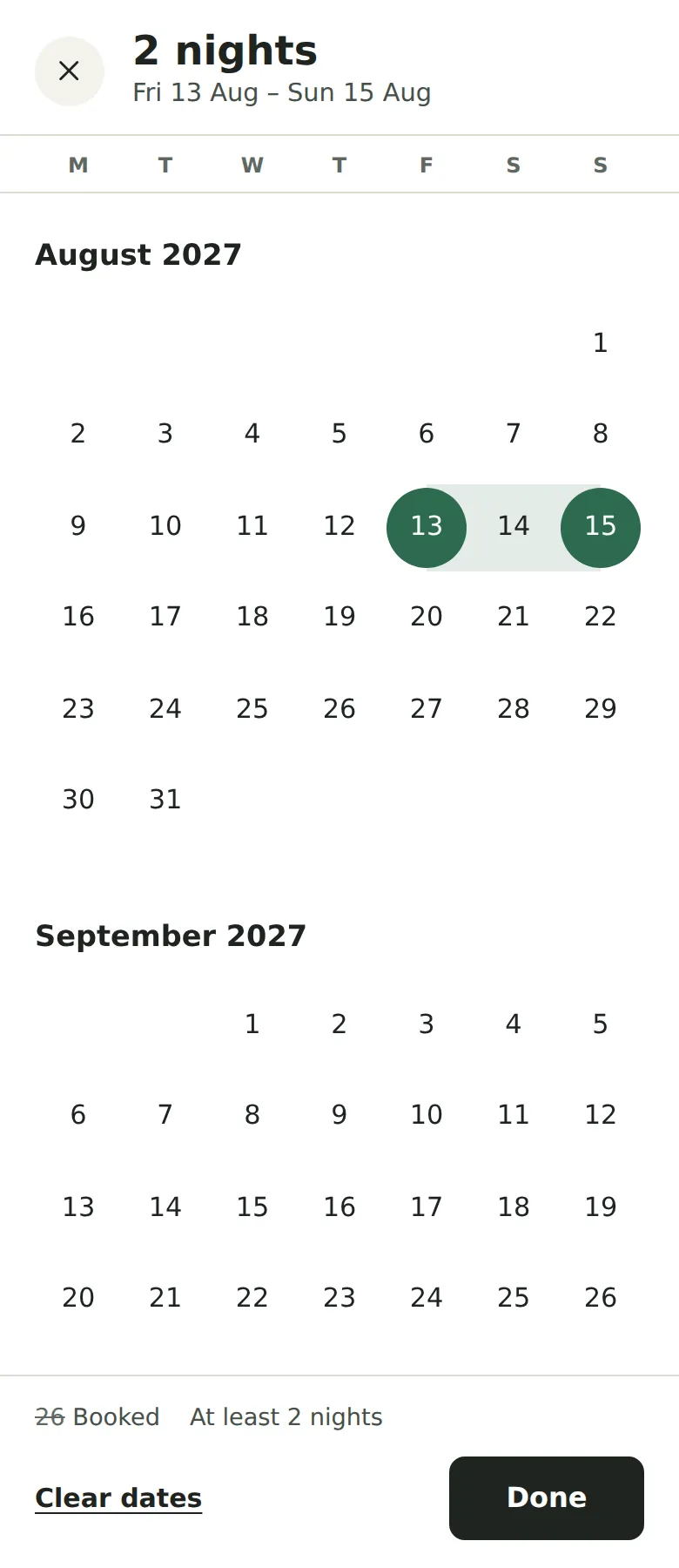
The page shows the stays you offer, with their photos, descriptions, key facts and prices. Once guests choose dates, each stay shows whether it is free and the total for that visit. If the dates do not work, the page explains why and may suggest nearby dates.
Guests press Choose beside a stay. A group can use Add to booking to choose more than one kind of stay for the same dates. If you let guests choose a named tent, cottage or room, they can select it; otherwise Kipdown allocates a free one.
Add extras and fill in details
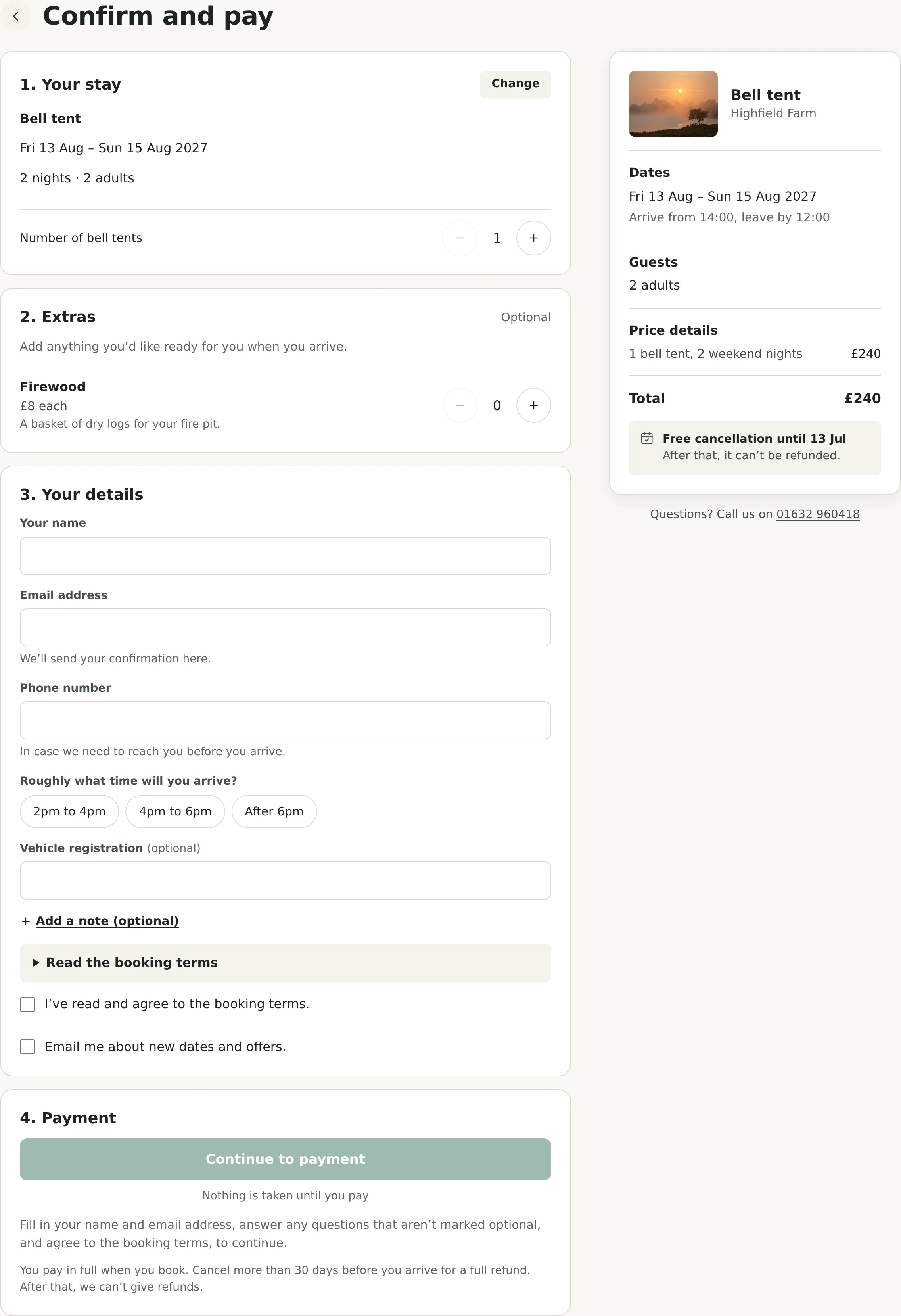
Section titled “Add extras and fill in details”On Confirm and pay, guests check Your stay, change quantities where offered and say who is staying in each part of a group booking. Extras offers items such as firewood; compulsory fees are already included. The total updates as they choose.
They enter their name and email address under Your details, with a phone field and an optional note. Any questions you have added appear here. Required questions must be answered. If you have booking terms, guests can open them and must tick the agreement checkbox.
Pay for the booking
Section titled “Pay for the booking”The last step follows your payment settings:
| How you take bookings | What the guest does |
|---|---|
| Payment or a deposit now | Presses Continue to payment, enters card details and presses the button showing the amount to pay. Their dates are held while they finish. |
| Nothing to pay now | Presses Book now. The page says what they pay when they arrive. |
| Bank transfer is offered and chosen | Presses Book and pay by bank transfer, then sees the bank details, reference and deadline. The booking is confirmed after you record the payment. |
See card payments, deposits and balances and bank transfer for setting these up.
Confirmation and their booking link
Section titled “Confirmation and their booking link”A completed booking shows Your booking is confirmed, its reference and any remaining amount and due date. A bank transfer shows Your dates are held and the payment deadline; the booking is not confirmed until you record the payment.
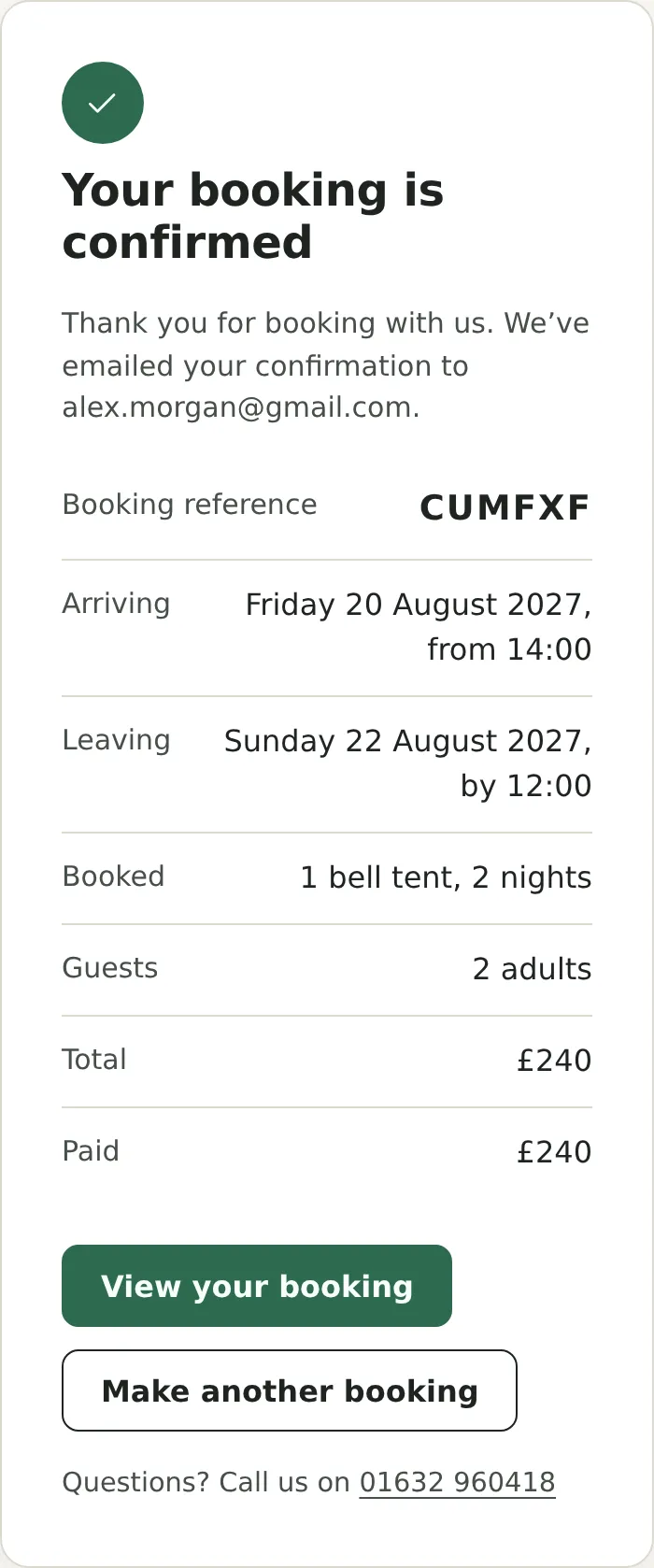
View your booking opens the guest’s own booking page. Their confirmation email also includes this link, so they can return without creating an account. They can see their stay and payments, pay money owed and print or save a receipt.
See what guests can do from their link for online changes and cancellation. Share the help for guests if they need a hand.
If they cannot finish
Section titled “If they cannot finish”An unavailable stay cannot be booked online. Guests should try different dates or contact you. An unfinished payment holds dates for 20 minutes; if the hold expires, they need to book again. If the bank is still confirming a payment, the page says so and Kipdown emails the result.