

Put booking on your website
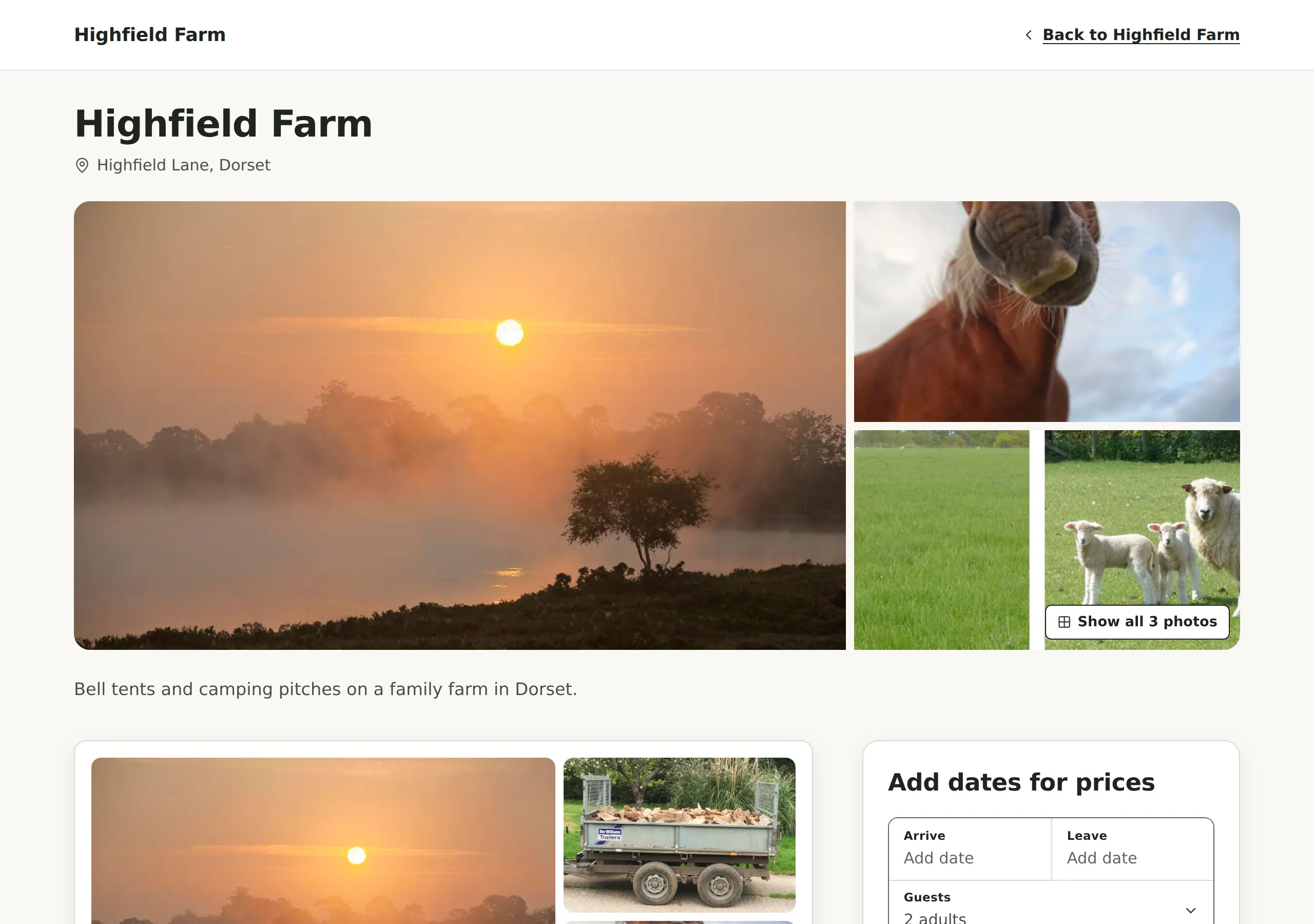
Every business on Kipdown has a booking page, with your name, photos and the line about your place. Guests can book on it in two ways: on a page of your own website, so they never leave it, or through a link to the booking page itself.
| Your website | What to use | Where to start |
|---|---|---|
| WordPress, Squarespace or another website builder | Two lines of code, pasted into a page | Add it to a page |
| Wix | A frame, pasted into an Embed HTML element | Add it to a page |
| Built by a developer | A note to send them | Add it to a page |
| No website, or only Facebook and Instagram | The link to your booking page | Share your booking page’s link |
Before you start
Section titled “Before you start”You need:
- Your stays and prices set up, under Stays and prices, so guests have something to book.
- “Taking bookings online” switched on, at the top of Settings → Where guests book. Until it’s on, your booking page tells guests to get in touch instead. You can put it on your website first and switch it on when you’re ready.
Find your code
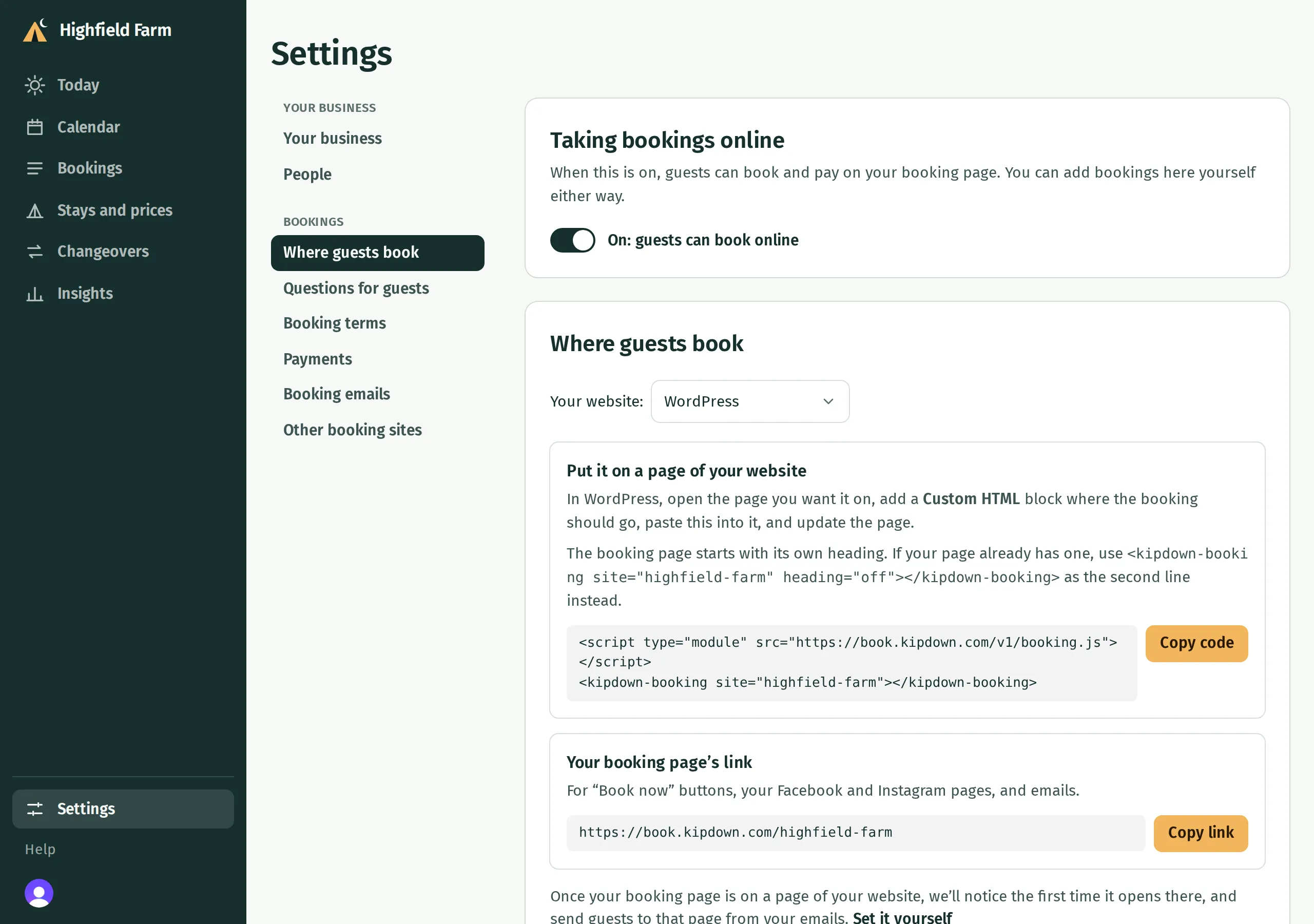
Section titled “Find your code”- In the menu, open Settings.
- Under Bookings, choose Where guests book.
- Check that Your website: shows what your website is built with. Kipdown fills this in when you sign up; if it’s wrong, choose the right one, and the steps and code below it change to match.
Add it to a page of your website
Section titled “Add it to a page of your website”Choose your website below. The steps are the same as the ones Kipdown shows under Put it on a page of your website.
- In Kipdown, press Copy code under Put it on a page of your website.
- In WordPress, open the page you want booking on, such as a page called Book.
- Add a Custom HTML block where the booking should go.
- Paste the code into the block.
- Press Update (or Publish for a new page), then open the page to check your booking page shows.
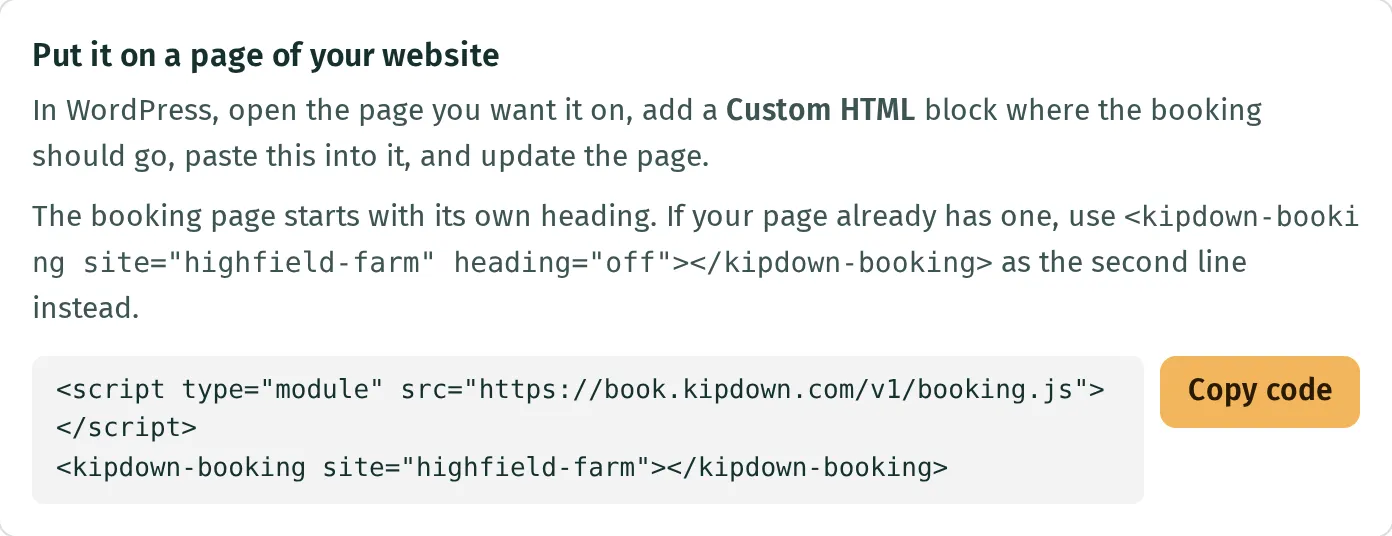
If your theme won’t run the code, open Other ways below it in Kipdown, copy the frame’s code instead and paste it into the Custom HTML block the same way.
- In Kipdown, press Copy code under Put it on a page of your website.
- In Squarespace, edit the page you want booking on.
- Add a Code block where the booking should go.
- Paste the code into the block and save the page.
If the Code block won’t run it, open Other ways below it in Kipdown, copy the frame’s code instead and paste that into the Code block.
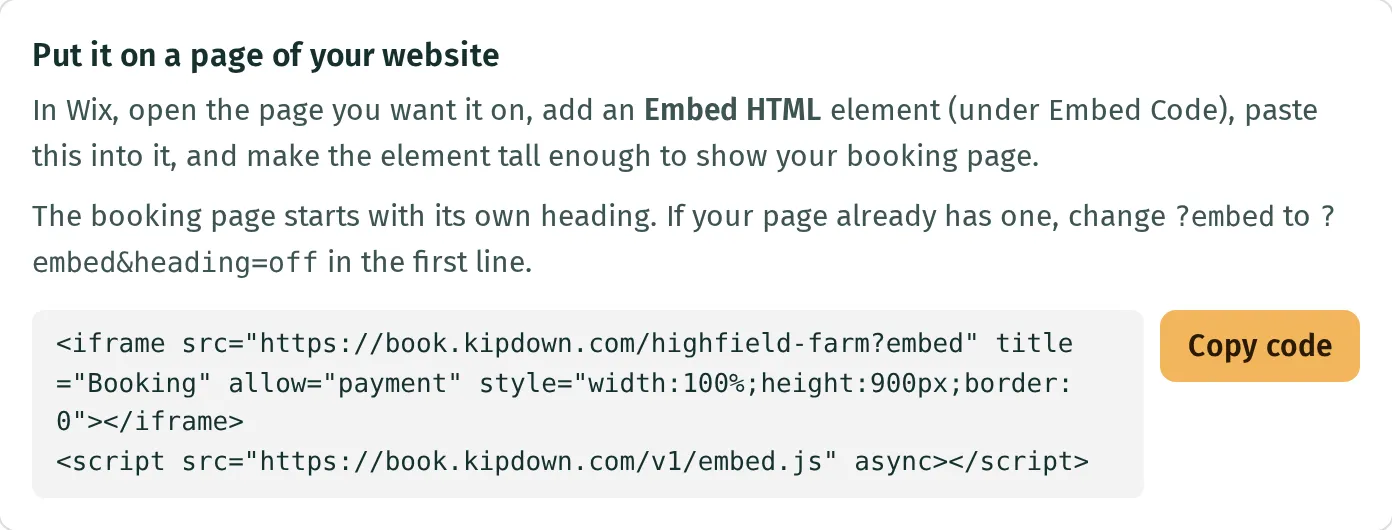
Wix can’t run Kipdown’s two lines, so Kipdown gives you a frame instead.
- In Kipdown, press Copy code under Put it on a page of your website.
- In the Wix editor, open the page you want booking on.
- Add an Embed HTML element, which is under Embed Code.
- Paste the code into the element.
- Make the element tall enough to show your booking page, then publish.
- In Kipdown, press Copy code under Put it on a page of your website.
- In your website builder, open the page you want booking on and look for an HTML, code or embed block.
- Add one where the booking should go and paste the code into it.
- Save or publish the page and check your booking page shows.
If your builder won’t run the two lines, open Other ways below them in Kipdown and use the frame’s code instead.
Choose Built by a developer under Your website:, then press Copy note under Send this to whoever looks after your website, and send it to them as it is. It tells them what to add and where. If you look after the website yourself, you can paste the note into ChatGPT or another AI assistant and ask it to help.
The note looks like this, with your own business’s code in it:
Please add our online booking to a page of our website, for example a page at /book.
Paste these two lines into the page's HTML where the booking should appear:
<script type="module" src="https://book.kipdown.com/v1/booking.js"></script><kipdown-booking site="highfield-farm"></kipdown-booking>
It's Kipdown: a small script that shows our booking page in the page itself, fitted to the page's width. Nothing else is needed: no account, no keys.It works on https://highfieldfarm.co.uk, https://www.highfieldfarm.co.uk. If the page will be on another address, tell us so we can add it.If the page already has a heading, use <kipdown-booking site="highfield-farm" heading="off"></kipdown-booking> as the second line instead.
The code on its own and the frame are under Other ways. There’s more for developers in the booking element reference and the booking frame reference.
If your page already has a heading
Section titled “If your page already has a heading”Your booking page starts with its own heading. If the page you put it on already has one, turn the booking page’s off:
- The two lines: use
<kipdown-booking site="your-business" heading="off"></kipdown-booking>as the second line. Kipdown shows this line, with your business in it, under the code. - The frame (Wix): change
?embedto?embed&heading=offin the first line.
After it’s on your website
Section titled “After it’s on your website”The first time your booking page opens on a page of your website, Kipdown notices and remembers that page. From then on, the links to book in your emails and gift vouchers send guests there. You’ll see the page under the code, in Guests book on.
To choose the page yourself, press Set it yourself (or Change) there and type its address, such as https://highfieldfarm.co.uk/book/.
Share your booking page’s link
Section titled “Share your booking page’s link”Your booking page’s link is on the same screen, with a Copy link button. It opens your booking page on its own, so it works anywhere: “Book now” buttons, your Facebook and Instagram pages, Google, and emails. If you have no website, it’s all you need.
If it doesn’t show on your website
Section titled “If it doesn’t show on your website”The page says to get in touch instead of taking bookings. “Taking bookings online” is off. Switch it on at the top of Settings → Where guests book.
Nothing shows, or it says it can’t be booked from here. The two lines only work on your own website’s address, the one you signed up with, with or without “www.”. If you signed up with a link to your Hipcamp, Pitchup or Airbnb page rather than your website, or you’re putting booking on a second website, email hello@kipdown.com with the website’s address. In the meantime, the frame and your booking page’s link work on any website.
On Wix, the booking page is cut off. Make the Embed HTML element taller.
What you can’t do yet
Section titled “What you can’t do yet”- Give your booking page an address on your own domain, such as book.highfieldfarm.co.uk. It’s at book.kipdown.com.
- Add another website for the two lines yourself. Email hello@kipdown.com instead.
Your logo and colour are set in Settings → Your business, and your booking page uses them.
For developers
Section titled “For developers”See the booking element reference for the exact markup, attributes, appearance and website restrictions, or the booking frame reference for the frame and its sizing script.