

The calendar
The Calendar shows which nights are taken and where guests are staying. Use it to find space, open a booking or move a stay.
Read the calendar
Section titled “Read the calendar”- Open Calendar in the menu.
- Choose Season, 2 weeks or Month above the grid.
- Use the arrows to look earlier or later. Press Today, when shown, to return to the current period.
- Find the kind of stay down the left. Individually named places have a row each. For pitches or other stays counted by number, press Show … stays to open the individual booking bars below the nightly totals.
- Click or tap a bar to see its stay card, then press Open booking for the full booking.
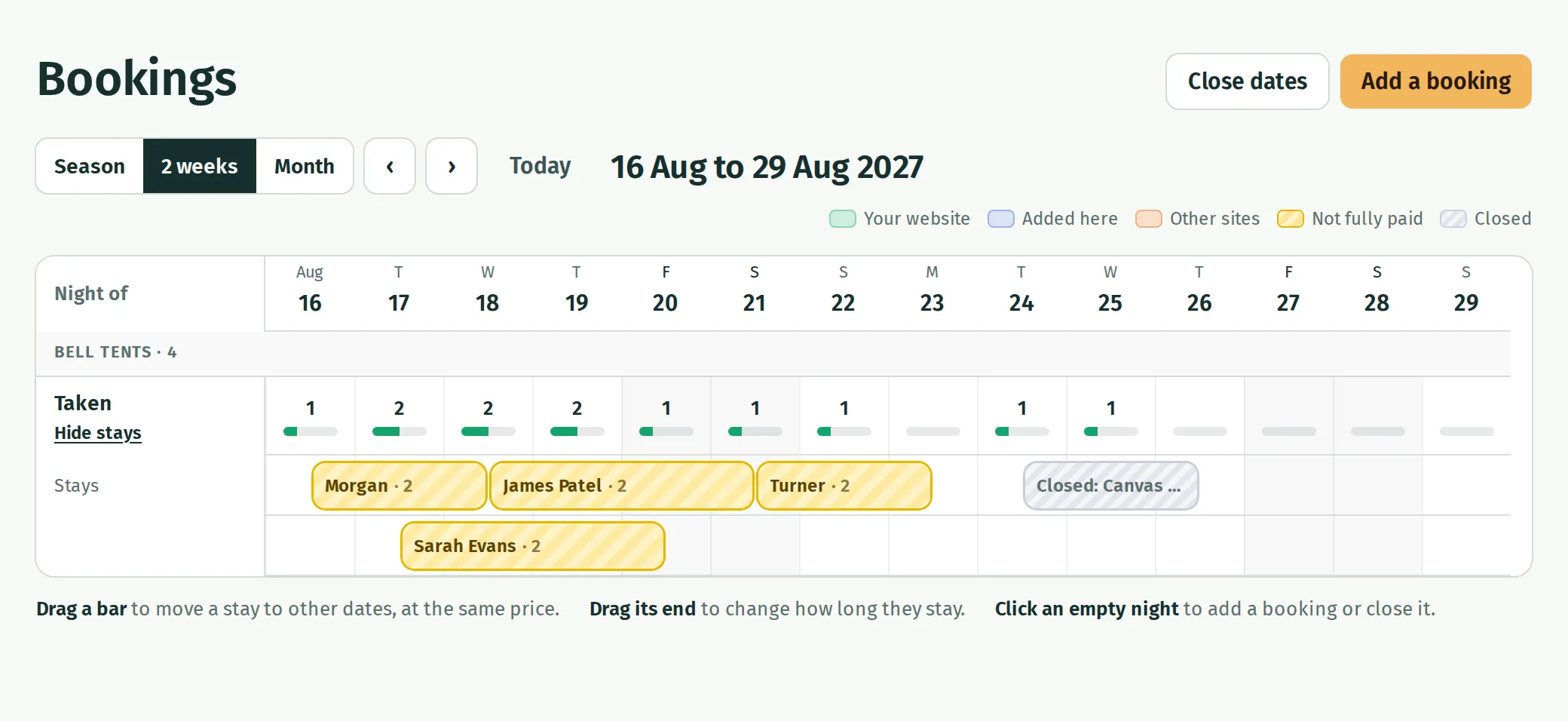
Each column is the Night of the date at the top. A stay’s bar runs from its arrival afternoon to its leaving morning, so two bars can meet on a changeover day. A booking with several stays has a bar for each; opening any one takes you to the whole booking.
The legend distinguishes Your website, Added here, Other sites, Not fully paid and Closed. Waiting bookings have dashed outlines; open their cards to see whether they are Paying now or have a Bank transfer due. A double booking is red; follow Sort out a double booking to resolve it.
Season shows open nights, with marks between them where stretches of closed nights have been left out. For stays without individually named places, the expanded rows arrange bars to fit the screen. Those rows do not assign guests to physical pitches.
Move a stay with a mouse
Section titled “Move a stay with a mouse”- Find the stay’s bar in Calendar.
- Drag the middle of the bar left or right to change its dates while keeping the same number of nights. For named places, you can also drag it onto another place of the same kind.
- Release the bar and check the message confirming the move. Use Undo in that message if you need to put it back.
To change the leaving day alone, drag the bar’s right-hand end instead.
Choosing a named place puts the stay there on purpose, so Kipdown keeps it there rather than moving it automatically to make room.
Use an empty night
Section titled “Use an empty night”Click or tap an empty night for Add a booking, Close this night or Email guests here that night. The first two open forms with the stay and arrival date filled in; check the leaving or reopening date before saving. See Add a booking or close dates.
If a bar will not move
Section titled “If a bar will not move”Dragging needs a mouse. On a phone, open the stay card and use Open booking → Change instead. Bookings brought in from another site’s calendar must be changed on that site. If there is no room on the new nights, Kipdown refuses the drag; open the booking to check alternatives.